How to Check If a Browser Extension Is Safe Before Installing
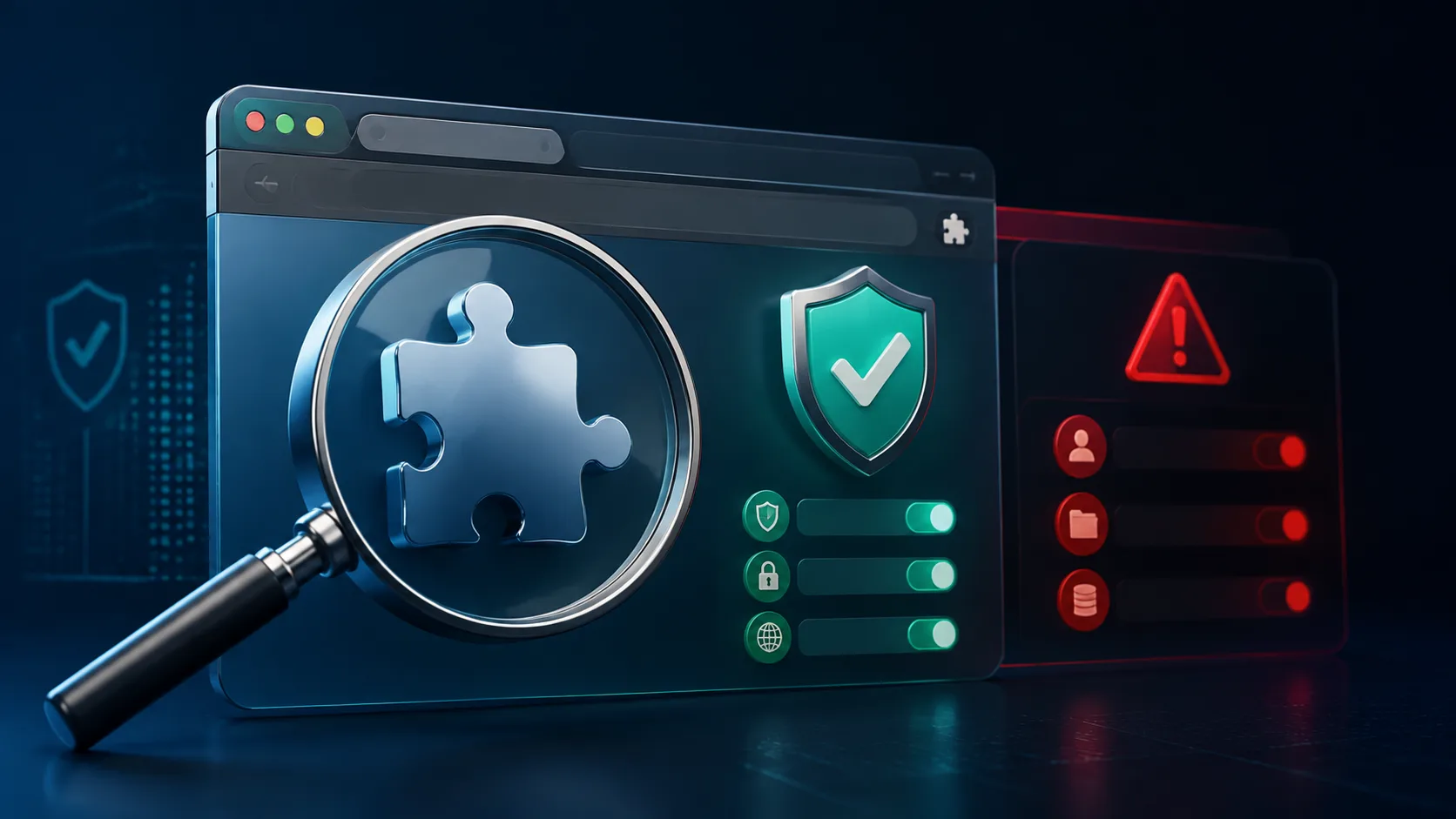
How to Check If a Browser Extension Is Safe Before Installing
Before installing a browser extension, check who publishes it, what permissions it requests, how recently it was updated, and whether its behavior matches its stated purpose. An extension can come from an official store and still deserve scrutiny, because extensions may read or change data on websites after you grant access.
This guide gives you a repeatable five-minute safety check for Chrome, Edge, Firefox, and other modern browsers. It is designed for ordinary users; you do not need to read source code or understand malware analysis.
Why browser extensions need a safety check
An extension runs inside your browser, where you sign in to email, social networks, work tools, shopping sites, and sometimes banking services. Depending on its permissions, an extension may be able to read page content, change what you see, manage downloads, access browsing history, or interact with every website you visit.
That does not make every broad permission malicious. A password manager, ad blocker, accessibility tool, or translation extension may genuinely need access to many pages. The important question is whether the requested access is proportionate to the feature you are installing.
Google says Chrome displays warnings for extensions that may pose a security risk and can disable extensions removed from the Chrome Web Store. Those protections help, but they do not replace your own check before installation.
The five-minute browser extension safety checklist
\1. Start from the developer's official website
If you already know the product or company, visit its official website and follow its link to the browser store. This reduces the risk of choosing a copycat with a similar icon or name.
If the extension has no credible website, company information, documentation, support address, or privacy policy, pause. A small independent developer can still be trustworthy, but the publisher should explain who operates the extension, what it does, and how to get help.
Check the developer name against the product website. Look for small spelling changes, added words such as “official,” or a store listing that links to an unrelated domain.
\2. Read the permissions as a description of capability
The installation prompt is not legal filler. It describes what the extension may be able to do. Treat each permission as a capability and ask whether the main feature truly needs it.
- “Read and change your data on all websites” is broad access. It may be justified for an ad blocker, translator, or password manager, but not for a basic calculator or wallpaper extension.
- Access to browsing history may support tab management or productivity analytics, but it is unnecessary for many cosmetic tools.
- Download management can be reasonable for a download helper, yet suspicious for an extension that claims only to change the new-tab background.
- Clipboard access deserves care because copied text may include passwords, addresses, payment details, or private messages.
Do not judge safety by the number of permissions alone. Judge the relationship between the requested capability and the promised feature. When that relationship is unclear, choose a less invasive alternative.
\3. Investigate the publisher, not just the star rating
Ratings are useful signals, but they are not proof. Reviews can be old, manipulated, or written before an extension changes ownership or behavior.
Search the exact extension name together with the developer name and words such as “security,” “privacy,” “malware,” “review,” and “acquired.” Look beyond the first result. Check whether established security organizations, reputable technology publications, or users have reported unexpected redirects, injected ads, changed search settings, or unexplained account activity.
Read recent low-star reviews first. A sudden cluster of complaints after a new update is more informative than thousands of historic positive ratings. Also examine the review dates: a high average based mainly on reviews from several years ago may not describe the current version.
\4. Check update history and privacy disclosures
A recent update is not automatically good or bad. However, an extension that has not been maintained for years may contain unresolved vulnerabilities or break as browser security standards change.
Review the store's “updated” date, version notes, website, and privacy practices. The privacy policy should identify what data is collected, why it is needed, where it is sent, how long it is retained, and whether it is sold or shared.
Be cautious when a simple offline feature claims to collect browsing activity, precise location, authentication information, or website content. Also be cautious when a privacy policy is generic, copied from another service, contradicts the store disclosure, or cannot be opened.
\5. Look for safer ways to get the same result
The safest unnecessary extension is the one you do not install. Before adding it, check whether the browser already includes the feature, whether a bookmark can replace it, or whether a web application can perform the task only when you open it.
For occasional work, a web tool may expose less of your browsing activity than an extension that stays installed. Our guide to free AI tools without login is an example of finding tools that can be used without creating another account; you should still inspect each service's privacy terms before uploading sensitive material.
Red flags that should stop the installation
- The name, logo, or description closely imitates a well-known product, but the publisher is different.
- The extension requests access to every website for a feature that should work on one page or offline.
- The developer website is missing, newly created, unrelated, or filled with vague claims.
- Recent reviews report redirects, new ads, changed search results, stolen sessions, or unwanted toolbars.
- The privacy disclosure says data is not collected while the privacy policy describes collection or sharing.
- The listing pressures you to install immediately, sideload a file, enable Developer Mode, or ignore browser warnings.
- The extension suddenly changed its purpose, branding, or publisher after a recent update.
One red flag does not always prove malware, but you do not need courtroom-level proof to protect your browser. When the benefit is small and the access is broad, declining the installation is the sensible decision.
How to review extensions already installed
Open your browser's extension-management page and review the list at least every few months. In Chrome, enter chrome://extensions in the address bar. In Edge, use edge://extensions. Firefox users can open about:addons.
Remove extensions you no longer use. Fewer extensions mean a smaller attack surface, less background activity, and fewer publishers trusted with future automatic updates.
For extensions you keep, open their details and restrict site access where the browser allows it. “On click” or access to specific sites is safer than permanent access to all sites when the extension does not need to run everywhere.
Pay attention to browser warnings. If the browser says an extension is unsupported, violates store policy, or may be unsafe, disable and investigate it rather than searching for a workaround to force it on.
What to do if an extension starts behaving suspiciously
First, disable the extension. If the unexpected behavior stops, remove it. Then update the browser and run the built-in security scan or a reputable endpoint-security scan.
If the extension could read login pages or session data, sign out of important accounts, revoke active sessions, and change affected passwords from a clean, updated device. Turn on multifactor authentication where available.
Check the browser's default search engine, homepage, notification permissions, and proxy settings. Suspicious extensions sometimes change settings or leave permissions behind. If symptoms continue after removal, reset the browser settings and inspect installed applications on the device.
Can an extension from an official store still be unsafe?
Yes. Official stores review submissions and remove harmful extensions, but no review system catches every threat forever. A previously legitimate extension can also be sold, compromised, or changed in a later update. Store availability is one positive signal, not a permanent guarantee.
This is why the best decision combines several signals: the official listing, publisher identity, necessary permissions, recent reviews, transparent data practices, and your actual need for the feature.
Quick decision: install, restrict, or avoid?
Install when the publisher is verifiable, the permissions clearly fit the feature, recent feedback is credible, data practices are understandable, and you expect to use the tool regularly.
Install with restricted site access when the tool is useful but does not need to run everywhere. Review its permissions again after major updates.
Avoid it when the publisher is unclear, the access is disproportionate, the privacy explanation conflicts with the behavior, or a browser feature or web tool can accomplish the same task with less access.
Final answer
To check if a browser extension is safe before installing, verify the publisher, match every permission to a necessary feature, inspect recent reviews and updates, read the privacy disclosure, and look for a lower-access alternative. If you cannot explain why an extension needs a sensitive permission, do not grant it.