How to Extend AI Videos in Google Flow With Gemini Omni 1.1 Flash
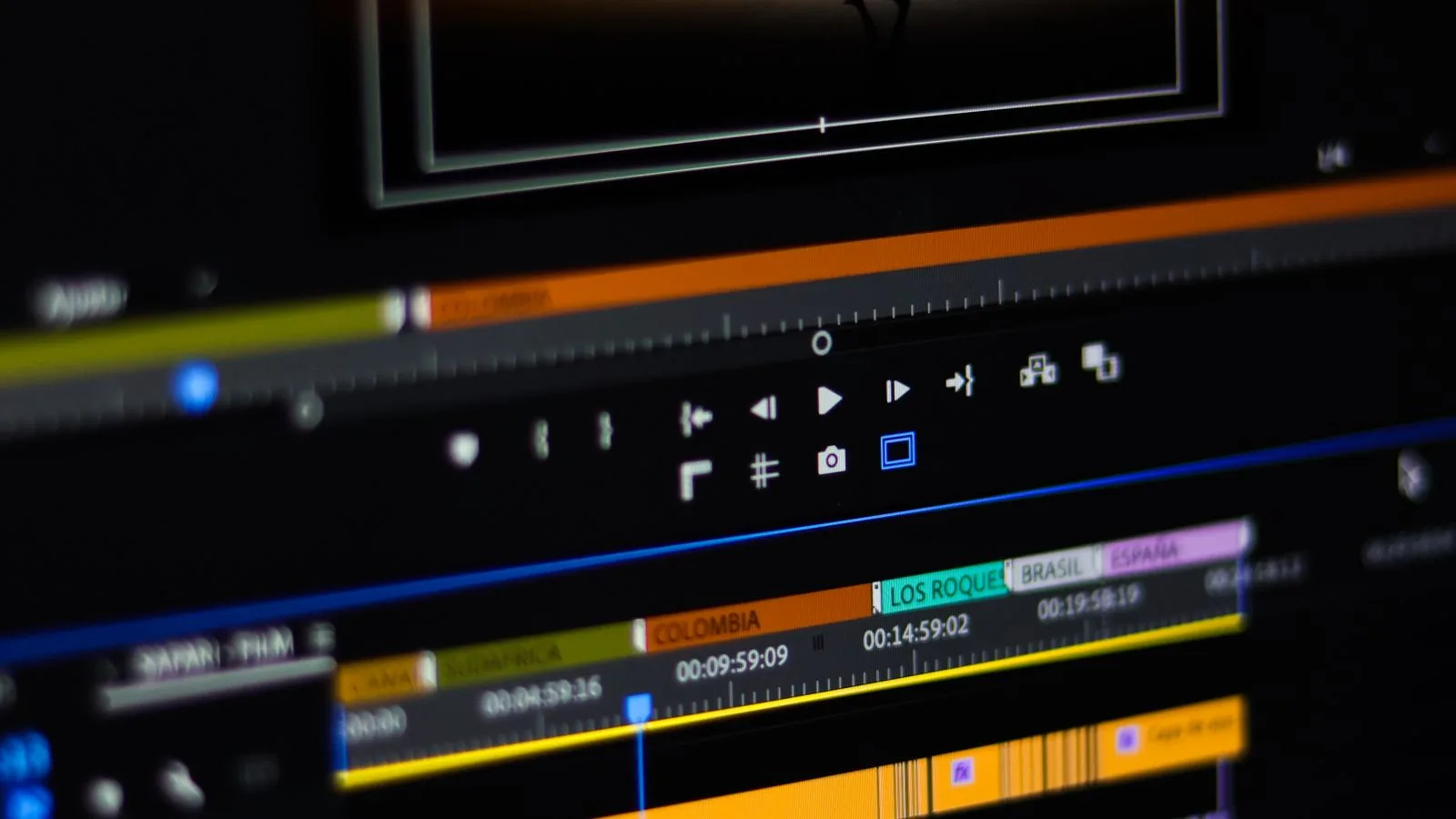
To extend an AI video in Google Flow, open a project, select a video generated with Veo, click Extend, describe exactly how the action and camera should continue, then generate the next segment. Gemini Omni 1.1 Flash can use up to 10 seconds of prior context and add footage in 10-second increments, up to 40 seconds cumulatively.
Google announced the expanded controls on August 27, 2026. The workflow is useful when a good shot ends too early, but it works best when your continuation prompt preserves the subject, camera, lighting, and direction of motion rather than introducing an entirely new scene.
What you need before extending a video
Start with an existing Google Flow project and a clip created with a supported Veo model. Google’s current Flow editing instructions say that the Extend control only works with Veo-generated videos; it is not a general-purpose extension tool for every uploaded MP4.
Gemini Omni 1.1 Flash is available in Flow to Google AI Plus, Pro, and Ultra subscribers globally, according to Google’s Omni 1.1 announcement. Feature visibility, available models, and credits can still vary by account and country, so check the model picker and your credit balance before starting a large sequence.
How to extend an AI video in Google Flow
1. Open the clip you want to continue
Go to Google Flow, open the relevant project, and select the generated video clip. Watch the last few seconds closely. Note the final position of the subject, the camera’s movement, the lighting direction, and any action that is already in progress.
A clean ending is easier to continue. If the final frames contain a fast cut, heavy motion blur, or a subject partly leaving the shot, trim to a more stable point before you extend.
2. Choose Extend
With the clip selected, click Extend at the bottom of the workspace. If the button is missing, confirm that the clip was generated with Veo and that the feature is available for your account. Uploaded footage can be edited with Omni Flash, but Google currently treats extension as a separate workflow.
3. Describe the continuation, not the whole scene
In the prompt box, tell Flow what should happen immediately after the existing clip. Keep the established facts consistent and specify only the changes you want.
A reliable continuation prompt covers four things:
- Subject action: what the person, animal, object, or environment does next.
- Camera behavior: hold, pan, track, orbit, push in, or pull back.
- Continuity: same character, clothing, location, lighting, lens feel, and direction of travel.
- New endpoint: where the extended segment should finish.
Use this template:
Continue the same unbroken shot. [Subject] continues [action] in the same direction. The camera [camera movement] while preserving the same [lighting, setting, wardrobe, and visual style]. End with [final composition or action]. No jump cut and no new objects.
Example:
Continue the same unbroken shot. The cyclist keeps moving toward the bridge at a steady speed. The camera tracks alongside her, then slowly pulls back to reveal the river. Preserve the overcast light, red jacket, wet road, and left-to-right movement. End on a wide shot with the bridge centered. No jump cut.
4. Generate and compare the result
Click Generate. Review the join first, not just the final frame. Look for a sudden change in face, clothing, object count, camera height, light color, or motion direction. If the seam is distracting, revise one variable at a time instead of rewriting the entire prompt.
Google says Omni 1.1 can analyze up to 10 seconds of preceding context and extend a sequence in 10-second increments. Multiple extensions can produce a cumulative video of up to 40 seconds, but every additional segment gives the model another opportunity to drift. Save strong versions as you go.
5. Arrange and export the sequence
Add successful clips to Flow’s Scenebuilder, where you can arrange, trim, preview, and download a sequence. Google also lets you create quick 360p drafts, download selected clips at 720p, and upscale finished work to 1080p or 4K. Treat the low-resolution draft as a composition check; upscaling cannot repair a changed face, malformed object, or broken action.
Extend versus first-and-last-frame generation
These two controls solve different problems:
- Extend continues an existing generated clip from its ending.
- First and last frame creates the motion between two supplied keyframes.
Use Extend when the current shot is already working and you want more time. Use first-and-last-frame generation when you know both the opening and closing composition—for example, a camera orbit that must finish on a product close-up or a seamless loop that must return to its starting image.
Google’s Flow update says Omni 1.1 Flash added stronger start/end-frame control alongside higher-resolution export and faster drafting.
How to keep the extended scene consistent
Repeat identity anchors
Restate the traits that must not change: hairstyle, age range, jacket color, prop, vehicle shape, or room layout. Do not replace these anchors with vague phrases such as “the same person” when the detail is important.
Preserve screen direction
If a character moves left to right, say that explicitly. Reversing direction can look like a continuity error even when the character remains recognizable.
Choose one camera move
“Orbit, zoom, crane up, then whip-pan” gives the model several competing instructions. A single controlled move is easier to continue cleanly. Google’s own Veo prompt guide recommends specifying shot framing, motion, style, lighting, character details, location, and action.
Make short branches
When you want to test two endings, branch from the strongest earlier clip instead of extending a weak result. This limits accumulated errors and makes variations easier to compare.
Fix common Google Flow extension problems
The Extend button is missing
Confirm that you selected a Veo-generated clip rather than an arbitrary upload. Then check your model access, account plan, country availability, and remaining AI credits. Reopening the project can also refresh a newly enabled feature.
The character changes at the join
Trim the original clip to a clearer final frame, repeat two or three distinctive identity details, and reduce simultaneous camera motion. If the face occupies only a few pixels, choose a closer or more stable endpoint before extending.
The new segment jumps to another shot
Add “one continuous unbroken shot” and describe the camera move. Avoid phrases such as “then we see” or “cut to,” which imply an edit rather than a continuation.
Objects appear, disappear, or multiply
State the exact objects that must remain and add “no new objects.” Generate another variation if a central product, hand-held item, logo, or piece of furniture changes. Do not assume that a 4K upscale will fix structural mistakes.
The motion freezes
Use an active verb and a measurable direction: “walks three steps toward the doorway” is clearer than “continues naturally.” Pair that action with a simple camera instruction.
A practical draft-to-final workflow
- Create or select the strongest base clip.
- Write a continuity note containing subject, wardrobe, light, camera, and movement direction.
- Generate low-resolution variations while changing one instruction at a time.
- Extend only the best version and save each successful branch.
- Assemble and trim the sequence in Scenebuilder.
- Review faces, hands, logos, text, and object continuity at normal playback speed and frame by frame.
- Upscale only after the sequence is correct.
This review step matters for all generative tools. The same habit used to fact-check AI answers and citations applies here: verify the output instead of trusting a polished result at first glance.
Privacy, rights, and disclosure
Use footage, faces, brands, and music you have permission to process and publish. Avoid uploading confidential client material until you have reviewed the product’s data terms and your organization’s policy. Our guide to AI data-training controls explains why account settings and workspace policies matter before sharing sensitive inputs.
Google says Veo-generated video is marked with SynthID, its imperceptible AI watermark. You should still label synthetic or materially altered media wherever a platform, client, newsroom, or advertising policy requires disclosure.
Bottom line
Google Flow’s Extend tool is best for turning one successful Veo shot into a longer continuous scene. Select the generated clip, click Extend, describe the next 10 seconds with firm continuity anchors, and iterate at low resolution before exporting. For a dependable result, keep the action and camera simple, inspect every join, and build the final sequence from short approved segments rather than one long uncontrolled prompt.