How to Use Claude Reflect and Set Quiet Hours
To use Claude Reflect, open Claude on the web or in Claude Desktop, go to Settings > Reflect, and choose the period you want to review. Reflect creates a recap of your conversations, active days, peak usage time and common topics. It also links to optional break reminders and quiet hours.
The feature is currently a beta for Claude Free, Pro and Max users. It requires Claude memory to be turned on, is not available on Team or Enterprise plans, and the Reflect page itself does not appear in the Claude mobile app.
What is Claude Reflect?
Claude Reflect is a personal usage dashboard introduced by Anthropic on July 9, 2026. It reviews how you use the Claude chatbot and turns recent chat history into a visual recap. The goal is not to grade productivity. Instead, it gives you enough information to decide whether your AI habits support the way you want to work.
A recap can cover the current month, the past month, three months, six months or one year. It includes a narrative summary, activity statistics, a topic breakdown and observations about how you collaborate with AI.
| Reflect requirement | Current status |
|---|---|
| Supported plans | Free, Pro and Max |
| Unsupported plans | Team and Enterprise |
| Where to open Reflect | Claude web and Claude Desktop |
| Is mobile activity included? | Yes, although the Reflect page is not available on mobile |
| Does it require memory? | Yes |
| Does viewing a recap use plan allowance? | No |
| Rollout status | Beta and gradual rollout |
How to turn on memory for Claude Reflect
Reflect uses the same chat history that powers Claude’s memory. If memory is disabled, the recap will not appear.
- Open Claude in a browser or launch Claude Desktop.
- Click your profile picture or initials.
- Select Settings.
- Open Capabilities.
- Turn on Generate memory from chat history.
- Return to Settings and look for Reflect.
Anthropic is rolling the feature out gradually. Turning on memory may make your account eligible, but it does not force Reflect to appear immediately.
Memory is a privacy choice as well as a feature requirement. Before enabling it, review what you discuss with Claude and whether persistent personalization is appropriate for the account. Our guide to controlling AI training and chat-data settings explains the difference between history, memory and model-improvement controls across major chatbots.
How to open and refresh your Claude monthly recap
- Open Claude on the web or Claude Desktop.
- Go to Settings > Reflect.
- Wait for Claude to generate the recap. Anthropic says a recap is created only when you visit this page.
- Open the period menu, which defaults to Past month.
- Choose This month so far, Past 3 months, Past 6 months or Past year if you want a different view.
- Click the refresh icon beside the period selector to regenerate the current view.
Viewing or refreshing a recap does not count against your Claude usage limit. Starting a new conversation from one of Reflect’s suggestions counts as a normal chat.
How to read the Reflect dashboard
Opening summary
The first section gives the selected period a headline and describes the work or themes found in your conversations. It is generated from your history, so treat it as an interpretation rather than an official record.
If a summary says you mainly used Claude for writing, for example, check the detailed topic percentages below it. A handful of long conversations can influence the narrative even when many shorter chats covered something else.
Your time with Claude
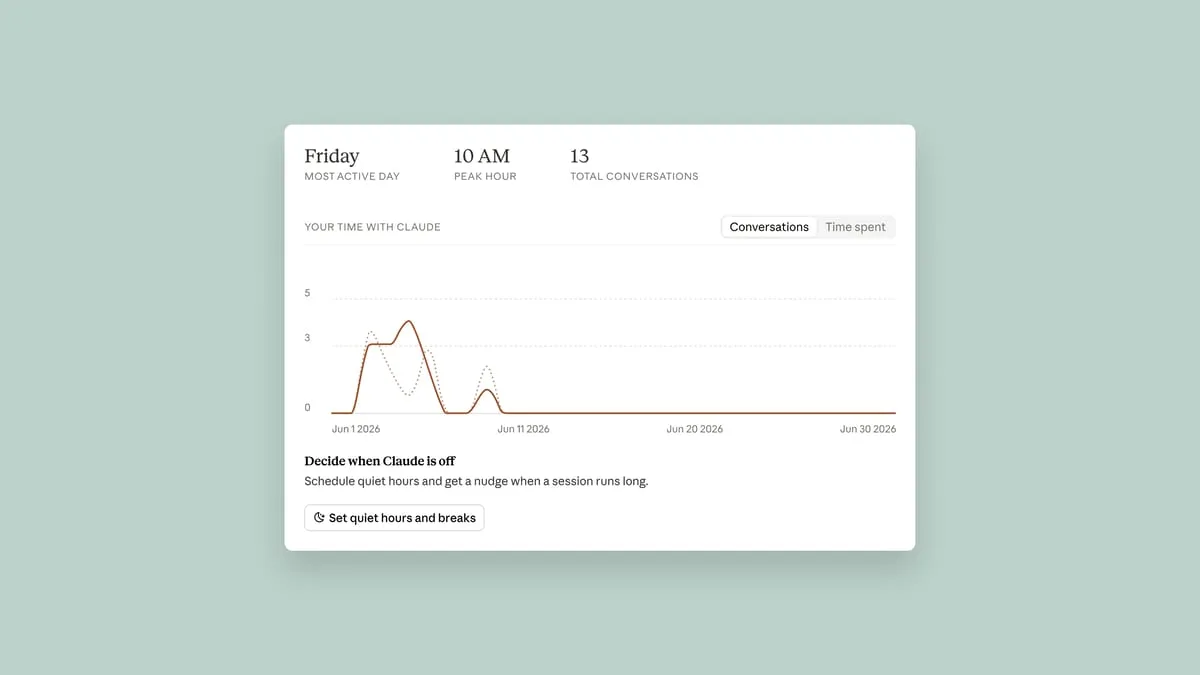
This section shows three headline statistics:
- Your most active day
- Your peak hour
- Your total number of conversations
A daily chart displays how activity was distributed over the selected period. These figures can reveal a useful pattern: whether Claude is concentrated in planned work sessions or opened repeatedly throughout the day.
The dashboard does not currently function as a precise time tracker. Use the conversation and activity figures as directional information, not as a replacement for billable-hours or employee-monitoring software.
What you spent time on
Reflect groups your conversations into themes and assigns each a short explanation and proportional percentage. This can help identify tasks that are repeated often enough to deserve a reusable project, prompt template or skill.
It can also reveal tasks you may want to keep human-led. If one category involves final business decisions, sensitive messages or high-stakes research, consider using Claude for preparation while retaining personal review and approval.
AI fluency observations
Reflect frames suggestions around four skills:
- Delegation: deciding what to give Claude and what to keep.
- Description: supplying enough context and clear requirements.
- Discernment: evaluating the answer instead of accepting it automatically.
- Diligence: representing AI-assisted work appropriately.
Each card can suggest a concrete next step, such as creating a Claude Project or a reusable skill. These are generated recommendations, so use them as ideas rather than mandatory productivity rules.
Discernment matters especially when Claude summarizes unfamiliar material. Our practical guide to fact-checking AI answers and citations provides a repeatable way to verify sources, dates and quoted claims.
How to set a break reminder in Claude
Break reminders are separate from Reflect, although the recap links to them.
- Open Claude on the web or Claude Desktop.
- Go to Settings > Time and focus.
- Find Break reminders.
- Use the dropdown controls to choose how much daily Claude activity should pass before a reminder appears.
- Continue using Claude normally.
When the threshold is reached, Claude displays a gentle reminder. You can stop, snooze it or dismiss it and continue. The reminder is not a hard daily limit and does not affect the message allowance included with your plan.
A useful starting point is to set the reminder just before your attention normally declines. If you tend to use Claude in one long research session, a shorter interval can prompt you to check sources and objectives before continuing. If usage consists of quick questions spread across the day, a longer threshold may be less disruptive.
How to set quiet hours in Claude
- Go to Settings > Time and focus.
- Under Quiet hours, select the days when the schedule should apply.
- Choose a start and end time for those days.
- Save the setting if Claude presents a save control.
Opening Claude during that period shows a reminder that you reserved the time for something else. You can select Continue and use Claude anyway, or leave and return later.
Quiet hours add intentional friction; they do not block the website or mobile app. They work best for boundaries such as:
- Stopping work chats after the end of the workday
- Protecting focused reading or planning time
- Avoiding late-night AI sessions
- Keeping weekends or family hours free from work prompts
You configure the schedule on Claude web or Desktop, but Anthropic says the setting then applies across web, Desktop and Claude Mobile.
How to change or remove quiet hours and reminders
Return to Settings > Time and focus. Change the break duration or scheduled hours as needed. To remove the break reminder, clear its dropdown selections. To remove quiet hours from a particular day, deselect that day.
Disabling Reflect does not erase existing Time and focus settings. Break reminders and quiet hours work independently from the recap and can be configured without ever opening Reflect.
What information Claude Reflect includes
Reflect builds its analysis from recent Claude chats connected to that account. Mobile conversations are included even though you must use web or Desktop to open the recap.
When Claude retrieves material from a connected service such as Gmail or Google Drive, the recap does not directly analyze the raw email or file. However, it may use the text that Claude wrote about that material inside the conversation. For example, the underlying emails are excluded, but Claude’s inbox summary can influence the recap.
This distinction is important: excluding a connected file does not necessarily exclude every conclusion Claude generated from it.
Which conversations are excluded?
Anthropic says these activities are skipped entirely:
- Incognito chats
- Conversations using health integrations such as Apple Health or Health Connect
- Claude Cowork activity
- Claude Code activity
Sensitive or distress-related topics are also handled differently. Anthropic says they do not lead the recap and are not itemized with percentages or counts. Support resources may be shown where appropriate.
Because Cowork and Claude Code are excluded, Reflect may underrepresent a developer or power user’s total Claude activity. It is a summary of eligible chatbot conversations, not a complete account-usage audit.
How to turn Claude Reflect off
There is no separate Reflect switch. To hide it, go to Settings > Capabilities and turn off Generate memory from chat history.
Turning memory off hides Reflect, but it does not delete chat history and does not remove break reminders or quiet hours already configured. If the goal is to remove stored conversations, manage chat history separately.
Why Claude Reflect is missing
Memory is turned off
Open Settings > Capabilities and enable memory. Reflect cannot generate a recap without it.
You are using an unsupported plan
Reflect is currently offered on Free, Pro and Max. Team and Enterprise accounts are excluded from the beta.
You are looking in the mobile app
Mobile chats contribute to the recap, but the Reflect page is currently available only on Claude web and Desktop.
The rollout has not reached the account
Anthropic describes the launch as gradual. If the account meets the requirements, check again later rather than repeatedly changing settings.
You are signed into another Claude account
Each account has its own recap. Confirm the email address associated with the current Claude session.
Can you trust every Reflect statistic?
Reflect’s conversation counts and activity dates come from account history, but its themes, percentages and narrative observations are AI-generated. Anthropic acknowledges that occasional inaccuracies can appear.
Use the thumbs feedback control when something looks wrong. If Reflect classifies a topic unexpectedly, compare it with the underlying conversations before making changes to your workflow.
The same caution applies when interpreting model changes. For readers considering Anthropic’s newest models, our comparison of Claude Fable 5.1 and Mythos 5.1 explains their access, safeguards and pricing without treating vendor benchmarks as guaranteed personal results.
The bottom line
Claude Reflect is useful for seeing broad patterns in how you use the chatbot, while Time and focus controls help you set voluntary boundaries. Open Settings > Reflect for the recap and Settings > Time and focus for quiet hours or break reminders.
Remember the limits: memory must be enabled, the dashboard is a beta for personal Free, Pro and Max accounts, and its reminders can always be dismissed. Treat the recap as a prompt for reflection—not an exact timesheet or a score of how well you work.
For the definitive feature rules, see Anthropic’s official guides to Claude’s monthly recap and break reminders and quiet hours.