How to Manage Gmail Hands-Free With Gemini Live
You can manage Gmail hands-free with Gemini Live by connecting Gmail in Gemini’s Personal Intelligence settings, opening the Gemini mobile app, tapping the Live icon and speaking a specific request. Gemini can search for messages, summarize them, star them, archive them or delete them using voice commands.
The feature began rolling out on August 26, 2026. Availability can still vary by country, language, account type and app version, so having Gemini Live does not guarantee that every Gmail action has reached your account yet.
What Gemini Live can do with Gmail
Google’s new integration turns Gemini Live from a voice chatbot into a conversational inbox assistant. You can ask a follow-up question without repeating the sender, subject or date range because Live keeps the current conversation context.
| Action | Example voice request | Changes your inbox? |
|---|---|---|
| Find email | “Find emails from Alex about the September invoice.” | No |
| Summarize | “Summarize the latest message and list anything I need to do.” | No |
| Check urgency | “Did I receive any urgent emails from the school today?” | No |
| Star | “Star the email about Friday’s reservation.” | Yes |
| Archive | “Archive those three newsletters.” | Yes |
| Delete | “Delete that promotional email.” | Yes |
Start with search and summarization until you know how accurately Gemini identifies messages in your inbox. Starring, archiving and deleting change your account, so they deserve a confirmation step.
What you need before you start
- The latest Gemini app on a compatible Android phone or iPhone.
- A personal Google account with Gemini Live access.
- Gmail connected in Gemini’s Personal Intelligence or connected-app settings.
- Microphone permission for the Gemini app.
- A supported language and region for the features being used.
Google describes Personal Intelligence as an optional feature that can connect Gemini with Gmail, Photos, Search, YouTube and past Gemini conversations. It is currently rolling out to eligible adults using personal Google accounts. Google says the Personal Intelligence beta is not available to Workspace business, enterprise or education users and excludes several regions, including the European Economic Area, Switzerland, the United Kingdom and Nigeria.
Basic Gemini Live availability is broader than Personal Intelligence availability. If you can talk to Gemini Live but cannot connect Gmail or use inbox commands, the account, region or rollout stage may be the limiting factor.
How to connect Gmail to Gemini Live
- Open the Gemini app and confirm that you are signed in to the Google account containing the Gmail inbox you want to manage.
- Tap your profile picture and open Settings.
- Choose Personal Intelligence or Connected Apps. The label may differ during the rollout.
- Enable the Google Workspace or Gmail connection. Review the permission explanation before accepting it.
- Return to the main Gemini screen and tap the Live icon.
- Ask a read-only question first, such as “Do I have any unread emails from today?”
- If Gemini returns the correct inbox and messages, continue with more specific requests.
If you use several Google accounts on the same phone, verify the account avatar before issuing an action. Gemini does not automatically know that a different inbox is the one you intended. ChatGPT users working across several Google identities can also read our guide to connecting multiple Google accounts to ChatGPT to understand how the account-selection approach differs.
Best voice commands for hands-free Gmail management
Find a specific message
Include at least two details so Gemini has less room to choose the wrong email:
- “Find the newest email from Maya with an attachment.”
- “Show me unread emails from Stripe received this week.”
- “Find the flight confirmation that mentions Alexandria.”
- “Search for the invoice from Acme that is over $500.”
If several messages match, ask Gemini to read the sender, subject and date before opening or changing anything.
Turn a long thread into an action list
Try: “Summarize the latest thread with the design team. Separate decisions, deadlines and tasks assigned to me.” This is more useful than asking for a generic summary because it defines the structure you need.
AI summaries can omit qualifications or confuse who agreed to what. For contracts, payment instructions, health information or security alerts, open the original message before acting. The same verification principles in our guide to fact-checking AI answers and citations apply to inbox summaries.
Clean up newsletters safely
A cautious sequence is:
- “Find promotional emails received in the past seven days.”
- “List the senders and subjects without changing anything.”
- “Archive messages from these two senders only.”
Avoid broad requests such as “Delete all unimportant mail.” Importance is subjective, and a mistaken classification could remove receipts, renewal notices or account warnings.
Star messages that need attention
Ask Gemini to identify the message first, then star it: “Find the latest email from my accountant about tax documents. Tell me its subject and date, then star it.” A two-stage instruction creates a useful review point while keeping the process hands-free.
How Daily Brief differs from normal Gmail commands
Gemini Live’s direct Gmail commands work when you ask for them. Daily Brief is a separate feature that automatically prepares a morning overview using Gmail, Google Calendar and previous Gemini chats.
To hear it, say “What’s my daily brief?” Gemini can surface priorities, reminders and suggested actions such as replying to an email or scheduling an event. Google says Daily Brief is rolling out in the United States to users aged 18 or older with Google AI Plus, Pro or Ultra. It requires Personal Intelligence for both Workspace data and Memory.
Daily Brief is generated once each morning, and Google currently does not offer a setting to choose its generation time. You can inspect the source behind an item by opening it and selecting More.
If calendar control is your main goal, our guide to scheduling Focus Time in Google Calendar explains how to protect working hours and automatically decline conflicting meetings.
When Gemini Live sends a task to Spark
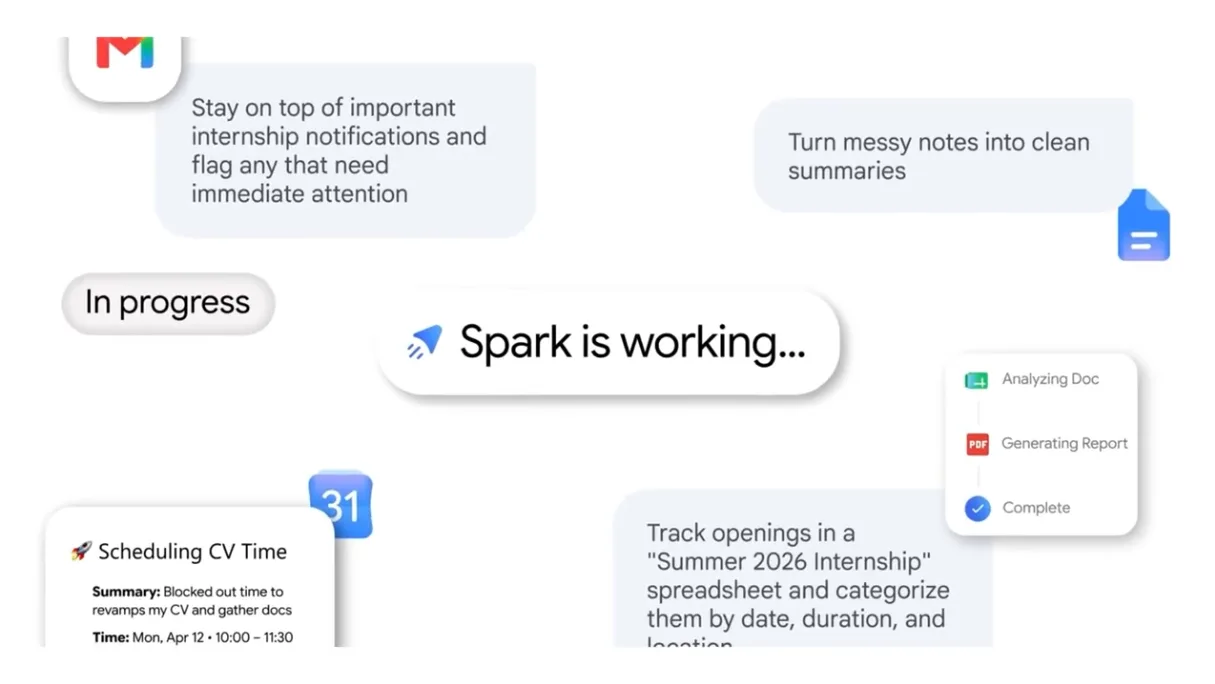
Spark handles longer, multi-step jobs that can run in the background across Google Docs, Sheets, Drive and the web. For example, you could talk through disorganized project ideas and ask Gemini to turn them into a structured Google Doc, or ask it to maintain a weekly meal plan and create a grocery list from saved recipes.
You do not need to say “use Spark.” Gemini Live is designed to route a suitable request to the tool. However, Spark has a separate subscription requirement: Google says it requires Google AI Pro or higher. A subscription still does not guarantee immediate availability in every market.
Keep the distinction clear:
- Gmail voice actions: immediate search, summary, star, archive or delete operations.
- Daily Brief: a prepared morning summary; Google AI Plus or higher where available.
- Spark: multi-step background assignments; Google AI Pro or higher where available.
Privacy settings to review
Connecting Gmail gives Gemini access to information that may include receipts, account alerts, private conversations and work documents. Before enabling it, review the following:
- Connected apps: enable only the Google services you intend to use.
- Gemini chat history: review or delete stored conversations from Gemini activity controls.
- Memory: decide whether Gemini may use past chats to personalize future responses.
- Account separation: do not connect a personal inbox when you intended to use a managed work account.
- Voice privacy: avoid having sensitive messages read aloud where others can hear them.
Google says Personal Intelligence is opt-in and lets users disable individual sources. It also says Gemini will try to reference the connected information used in a response so that you can verify it. For broader controls across major assistants, see our guide to stopping ChatGPT, Claude and Gemini from training on your chats.
How to prevent accidental deletion
Hands-free control is convenient, but voice recognition can mishear a sender or date—especially in noise. Use these safeguards:
- Ask Gemini to list the matching messages before changing them.
- Use sender, subject and date boundaries in every bulk command.
- Archive uncertain messages instead of deleting them.
- Say “one message only” when the command should not affect a thread or group.
- Open Gmail afterward and review Trash before permanently emptying it.
Google can make mistakes when interpreting messages or spoken instructions. Do not use Gemini as the only control for financial approvals, password-reset emails, legal notices or medical correspondence.
Why Gmail commands may not appear
Update the Gemini app
Install the latest version from Google Play or the App Store, then restart the app. A server-side rollout may still take time even after updating.
Check the active Google account
The Gemini account and Gmail account must match. Switch accounts from the profile menu and reopen Live.
Review connected-app permissions
Return to Personal Intelligence or Connected Apps and confirm that Gmail or Workspace access is enabled. If it is enabled but not working, disconnect it, close the app and reconnect it.
Confirm eligibility
Some features require an adult personal account, a paid Google AI plan or a supported region. Managed Workspace accounts can also have administrator restrictions. Check the feature shown in your own account rather than relying only on a subscription name.
Try a simple read-only request
Say “Find unread emails from today.” If Gemini says it cannot access Gmail, the connection or rollout is the likely issue. If it finds the messages but cannot archive them, action permissions may not yet be enabled for the account.
The bottom line
To manage Gmail hands-free with Gemini Live, connect Gmail, start Live and use precise, narrow voice commands. Search and summary are the safest starting points. Confirm the sender, subject and date before starring, archiving or deleting messages.
Daily Brief and Spark add more automation, but they have separate subscription and availability rules. Treat every rollout label as account-specific, and keep human review for sensitive or destructive actions.
Google documents the rollout in its Gemini Live productivity announcement. Its official pages also explain Personal Intelligence, Daily Brief and Gemini Spark.