How to Fix “Crawled – Currently Not Indexed” in Google Search Console
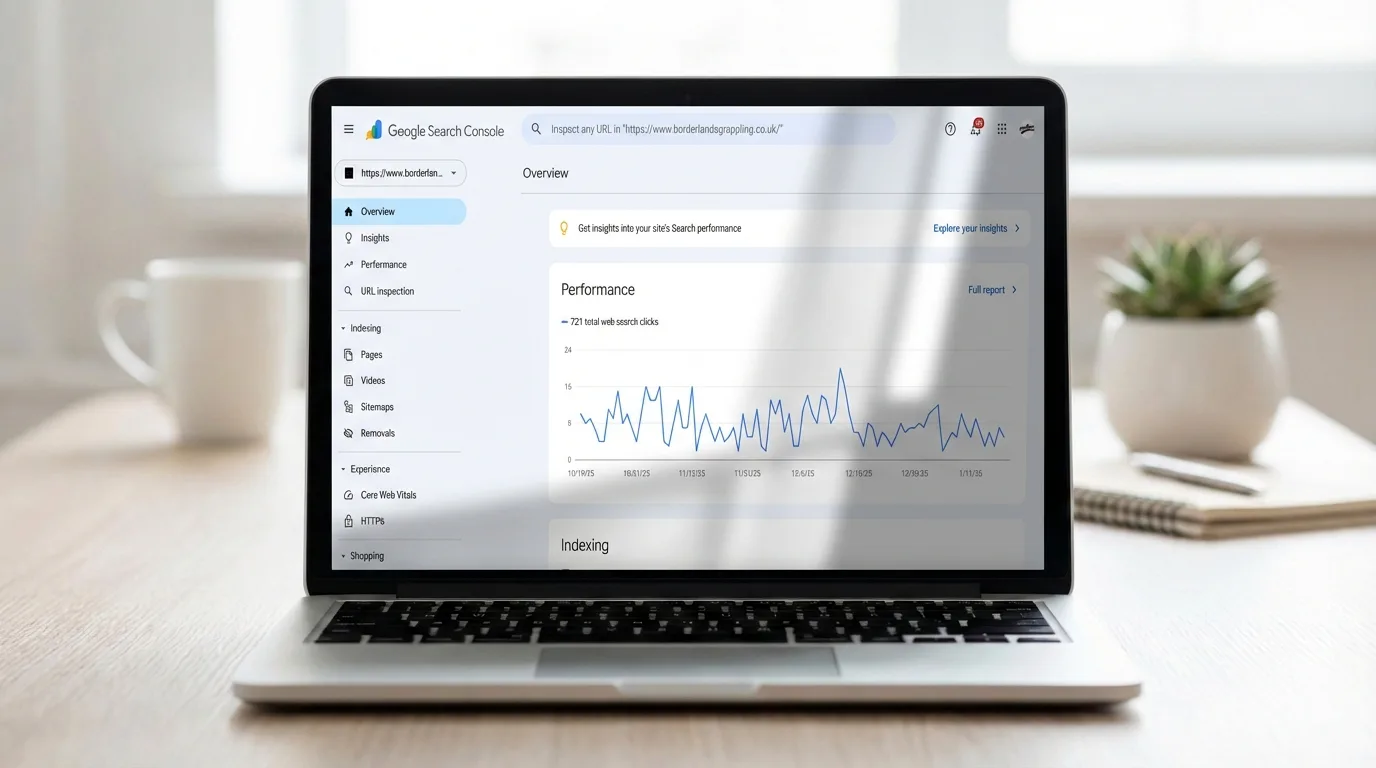
“Crawled – currently not indexed” means Google visited the URL but chose not to add it to the search index at that time. It is not a request to keep clicking “Request indexing.” Start by confirming that the page is technically indexable, then check its canonical URL, duplication, internal links and whether the content provides enough unique value to deserve a separate result.
Google says the page may or may not be indexed later and that there is no need to resubmit the unchanged URL for crawling. Make a meaningful fix first, request indexing once, and then allow time for Google to recrawl and reassess the page.
What “Crawled – currently not indexed” actually means
In Google Search Console’s Page indexing report, this status confirms two things:
- Google discovered and fetched the URL.
- Google did not store that page as an indexed search result at the time of the report.
The label does not identify one universal cause. A technically healthy page can remain unindexed, while duplicate content, unexpected canonicals, thin template pages, weak internal discovery signals or rendering problems can contribute. Indexing is not guaranteed even when a URL satisfies the basic technical requirements.
Do not confuse it with Discovered – currently not indexed. “Discovered” means Google knows the URL but has not crawled it yet. “Crawled” means the fetch already happened, so submitting the same sitemap repeatedly usually does not address the central issue.
First, decide whether the page should be indexed
Not every URL belongs in search results. Before treating the status as a problem, ask whether the page has a useful, standalone search purpose.
URLs that often do not need indexing include:
- Internal search-result pages.
- Filtered or sorted category combinations.
- Cart, login, account and checkout pages.
- Tracking-parameter variants of a canonical URL.
- Empty tags, author archives or attachment pages.
- Duplicate print, mobile or campaign versions.
- Expired pages with no replacement or continuing value.
If exclusion is intentional, use the correct method: a canonical for duplicate variants, a 301 redirect for a permanently replaced URL, a proper 404 or 410 for removed content, or a noindex directive for an accessible page that should not appear in search. Do not spend time forcing every generated URL into the index.
Step 1: Inspect the exact URL in Search Console
Paste the affected URL into the URL Inspection field at the top of Search Console. Review both the indexed information and the live page.
Record these details:
- Last crawl date.
- Crawl allowed status.
- Indexing allowed status.
- Page fetch result.
- User-declared canonical.
- Google-selected canonical, when available.
- Referring sitemap and referring pages.
Then select Test Live URL. A live test helps confirm whether Google can currently fetch and render the page after a recent fix. However, Google notes that the live test does not reproduce every indexing decision—particularly duplicate and canonical conditions—so “URL is available to Google” is eligibility, not a promise of indexing.
Step 2: Confirm the page is technically indexable
The page should return a stable 200 OK response to an unauthenticated visitor and to Googlebot. It should not require a login, return an intermittent server error or redirect through a long chain.
Check robots.txt and robots directives
Make sure the URL and its essential resources are not unintentionally blocked in robots.txt. Then inspect the page source and HTTP headers for:
<meta name="robots" content="noindex">
or an X-Robots-Tag: noindex header. Google’s noindex documentation explains that Google must be allowed to crawl a page in order to see a noindex directive. Blocking a URL in robots.txt is therefore not a reliable replacement for noindex.
Check what Google actually renders
Use the live inspection result’s rendered-page view and HTML output. The main title, body copy, links and important images should be available without requiring a click, swipe, login or unsupported client-side action.
A browser may display content after running scripts that Google could not load during the crawl. If the rendered HTML is mostly empty, fix server-side rendering, hydration errors, blocked JavaScript resources or API failures before revisiting content quality.
Step 3: Check the canonical URL carefully
Canonicalization is one of the most common places where a page that looks unique to a publisher appears duplicative to Google.
For a page that should stand alone, inspect its HTML head for a self-referencing canonical such as:
<link rel="canonical" href="https://example.com/preferred-page/">
Confirm that the canonical:
- Uses the preferred HTTPS, hostname and trailing-slash format.
- Returns 200 and is itself indexable.
- Does not redirect to another URL.
- Matches the version used in internal links and the XML sitemap.
- Is not being overwritten by a CMS plugin, HTTP header or JavaScript.
Google defines canonicalization as choosing one representative URL from a group of duplicate or near-duplicate pages. Its canonical URL guidance recommends consistent signals: redirects, rel=canonical, sitemaps and internal links should point toward the same preferred URL.
If Google selects a different canonical, compare the two pages. A self-canonical is a hint, not a command. Substantially overlapping pages may need to be merged, redirected or rewritten to serve genuinely different intents.
Step 4: Look for duplicate and near-duplicate pages
Search your CMS, sitemap and site for pages targeting the same question. Common duplication patterns include:
- Several articles with slightly different years in the title.
- Location pages where only the city name changes.
- Product variants with identical descriptions.
- Tag and category pages repeating article excerpts.
- HTTP/HTTPS, www/non-www or trailing-slash variants.
- URLs created by tracking, sort and filter parameters.
- AI-generated articles that rephrase the same generic points.
Choose the strongest URL for each search intent. Merge useful sections from weaker pages into it, redirect true replacements, and remove obsolete URLs from internal links and sitemaps. If two pages must remain, make their audience, purpose and content clearly different.
Duplicate content is not automatically a spam violation, but Google’s SEO guidance notes that it can waste crawling resources and leave search engines choosing a canonical version you did not intend.
Step 5: Improve the page’s unique value
If the technical and canonical checks pass, evaluate the page as a search result—not as a word count.
Ask:
- Does the introduction answer the query directly?
- Does the page add original steps, examples, screenshots, tests or firsthand experience?
- Is it more useful than another page already on the site?
- Are factual claims supported by primary or authoritative sources?
- Does the title accurately match the content?
- Is the information current and maintained?
- Would a reader bookmark, share or return to it?
Adding 500 generic words rarely solves an indexing problem. Replace filler with material that changes the reader’s outcome: a tested procedure, decision table, original comparison, exact limitation, worked example or troubleshooting path.
Google’s people-first content guidance says its systems prioritize helpful, reliable information made for people rather than pages created mainly to manipulate rankings. When AI assists the draft, verify every claim and citation; our guide to fact-checking AI answers and citations provides a practical review process.
Step 6: Add strong, crawlable internal links
An important page should not be an orphan reachable only through a sitemap. Link to it from relevant indexed pages, its parent category and any hub that helps users discover the topic.
Use normal HTML links:
<a href="/preferred-page/">descriptive anchor text</a>
A clickable element built only with an onclick event may not provide the same dependable crawl path. Google’s link best practices recommend anchor elements with resolvable href values and concise, descriptive anchor text.
Do not create dozens of forced exact-match links. Add a few contextual links where the destination genuinely helps the reader. Also link outward from the affected page to related resources so it participates in the site’s information structure.
Step 7: Clean the XML sitemap
A sitemap should list the canonical URLs you want Google to consider for search—not every URL the CMS can generate.
For the affected page, confirm that:
- The sitemap contains the complete preferred HTTPS URL.
- The URL returns 200 without a redirect.
- It is not blocked or marked noindex.
- Its canonical points to itself when it is the preferred version.
- The
lastmodvalue changes only after a meaningful update.
Google’s sitemap documentation says to include the URLs you want shown in search and generally use canonical URLs. A sitemap supports discovery and canonical signals, but it does not force indexing.
Step 8: Request indexing once after the fix
After making a substantial change, run Test Live URL. If the page is accessible and indexable, click Request Indexing once.
Google says crawling can take from a few days to a few weeks. Its recrawl guidance also says repeated requests for the same URL do not make crawling faster, and requesting a crawl does not guarantee indexing.
Record the request date and wait for a new crawl before judging the result. If the last crawl date has not changed, Search Console may still be showing the earlier version.
How to handle hundreds of affected URLs
Do not edit every URL blindly. Export or sample the affected list and group pages by template, directory, content type and intended index status.
- Separate intentional exclusions. Filters, duplicates and expired pages may be working as intended.
- Find shared technical patterns. A faulty canonical template or noindex header can affect an entire directory.
- Prioritize valuable pages. Start with pages linked from navigation, earning impressions elsewhere or serving important user needs.
- Test a small batch. Fix several representative URLs and monitor their next crawls before changing thousands.
- Consolidate weak inventory. Merge overlapping articles and remove empty archive pages from the sitemap.
The Page indexing report shows examples rather than a guaranteed complete list of every affected URL. Use site exports, crawl data and CMS records to understand the full pattern.
What not to do
- Do not request indexing repeatedly without changing the page.
- Do not add generic text merely to increase word count.
- Do not change the publication date to make unchanged content look fresh.
- Do not submit noncanonical redirects, parameter URLs or noindex pages in the sitemap.
- Do not buy links as a substitute for fixing duplication or content quality.
- Do not install an unknown “instant indexing” extension or give it Search Console access. Review our browser-extension safety checklist first.
- Do not assume every indexing change is caused by an algorithm update; verify crawl dates, server behavior and page-level signals.
Frequently asked questions
Is “Crawled – currently not indexed” a penalty?
No. The label means the URL was crawled but is not indexed. It does not, by itself, report a manual action or penalty. Check the Manual Actions and Security Issues reports separately if you are investigating those concerns.
How long does it take Google to index a fixed page?
There is no fixed deadline. Google says recrawling may take days to weeks, and indexing is not guaranteed. Wait for a new crawl date before deciding whether the fix was reassessed.
Should I request indexing every day?
No. Google explicitly states that repeated recrawl requests for the same URL do not make crawling faster. Request indexing after a meaningful change, then monitor the URL.
Will adding the page to a sitemap fix it?
A sitemap helps Google discover important canonical URLs, but it cannot force indexing. The page still needs consistent technical signals, useful content and a clear place in the site’s internal-link structure.
Can a brand-new website have many crawled but unindexed pages?
Yes. New sites often have limited history and few established signals, and Google does not guarantee that every processed page will be indexed. Focus on a smaller set of distinctive pages, strong internal navigation and a clean canonical sitemap instead of publishing many similar pages at once.
Should I delete every unindexed page?
No. First decide whether the page serves users, whether it overlaps another URL and whether the exclusion is intentional. Improve valuable pages, consolidate duplicates, and remove only content that has no useful purpose or replacement.