Microsoft PC Manager Review: Is It Safe and Worth Using on Windows 11?
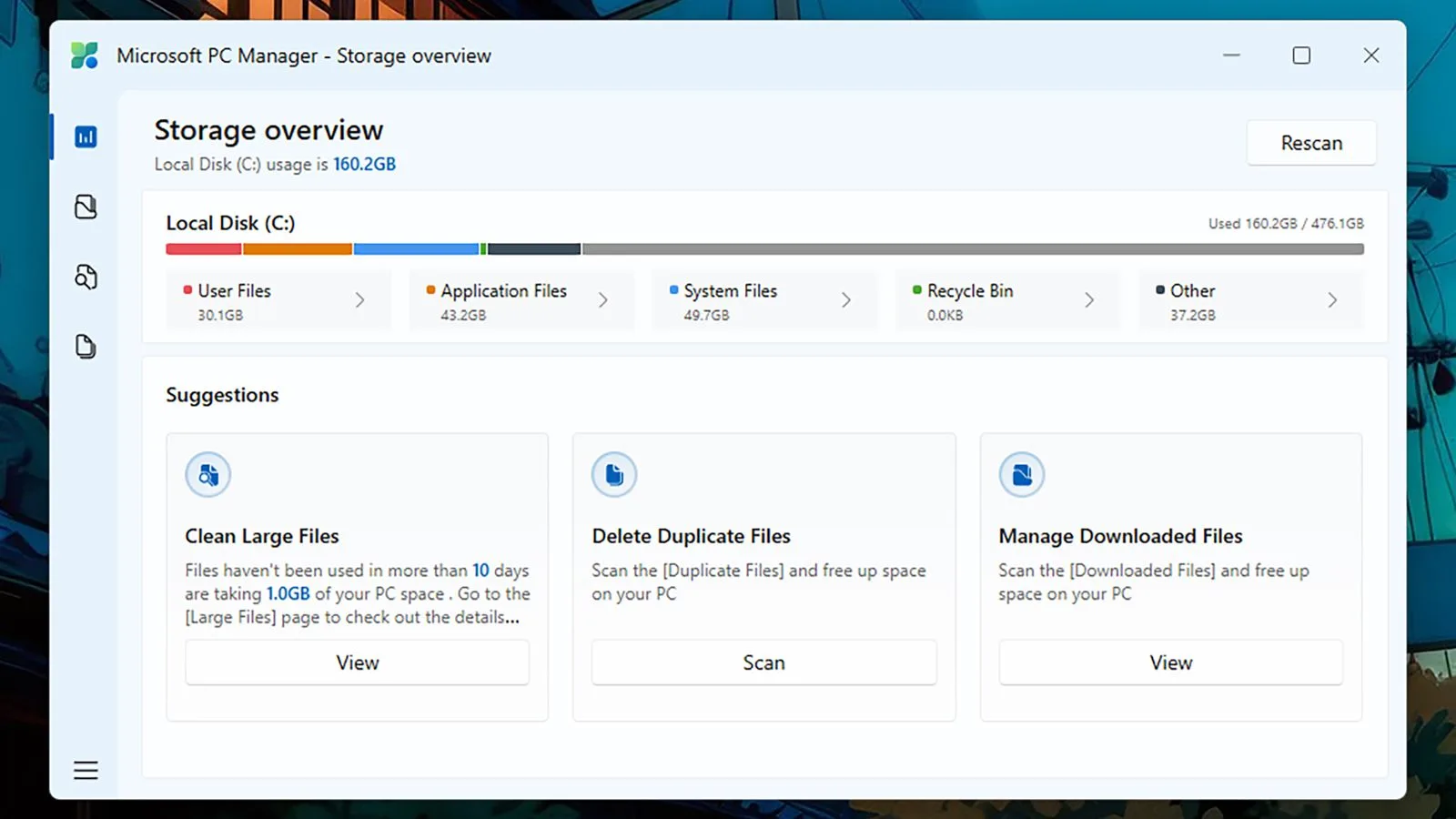
Quick verdict: Microsoft PC Manager is legitimate and reasonably safe when you install it from the Microsoft Store or Microsoft's official PC Manager website. It is worth using if you want one simple dashboard for storage cleanup, startup apps, basic health checks, pop-up control, and Windows utilities. It is not essential for experienced Windows 11 users, however, because most of its useful features already exist in Settings, Task Manager, Storage Sense, and Windows Security.
PC Manager can make routine maintenance easier, but it will not turn an old computer into a fast one. Its Boost button mainly clears temporary files and releases memory, so any speed improvement may be brief. It cannot add RAM, repair failing hardware, solve overheating, or replace a proper backup and security plan.
Reviewed September 3, 2026. This is an evidence-based feature review using Microsoft's current documentation and published interface details, not a claim of laboratory benchmarking.
Microsoft PC Manager review: the short answer
- Best for: beginners and family members who want routine Windows maintenance in one approachable app.
- Skip it if: you already use Storage Sense, Task Manager, Windows Security, and Settings comfortably.
- Is it safe? Yes, if obtained directly from Microsoft. Avoid unofficial “PC Manager” installers.
- Does it replace antivirus? No. Its threat scanning works with Windows Security rather than replacing Microsoft Defender.
- Will it speed up a PC? It may help when storage is tight, too many apps launch at startup, or temporary files have accumulated. It cannot make the processor or storage hardware faster.
Our recommendation is straightforward: install it for convenience, not because you expect a dramatic performance upgrade. If you need to reclaim disk space without another utility, our guide to freeing storage in Windows 11 without deleting personal files covers the built-in route.
What is Microsoft PC Manager?
Microsoft PC Manager is a Windows maintenance utility made by Microsoft. It brings common cleanup, storage, startup, process, update, and security shortcuts into a single interface. Microsoft's current product page lists compatibility with Windows 10 build 19042.0 or later and Windows 11.
The official feature list includes PC Boost, storage management, pop-up management, health checkup, and a toolbox with Windows utilities. Microsoft's service agreement provides more detail, naming Deep Cleanup, startup-item management, process management, application uninstall, disk analysis, Windows Update, taskbar repair, and threat scanning through Windows Security Center.
That breadth is the app's main appeal. Instead of remembering where Microsoft placed each maintenance control in Windows, you can start from one dashboard.
Is Microsoft PC Manager safe?
The app itself is legitimate, but the download source matters. Microsoft says users should obtain PC Manager from the Microsoft Store or through its official PC Manager website. Its service agreement explicitly warns that Microsoft cannot guarantee installers with the same name obtained from unauthorized third parties.
Before installing, check that the Store listing names Microsoft Corporation as the publisher. If you use an installer, verify its digital signature in File Explorer: right-click the file, choose Properties, open Digital Signatures, and confirm the signer is Microsoft. Do not use download portals that wrap the installer in their own download manager.
What data does it handle?
“Safe” should also include privacy. Microsoft's current agreement says PC Manager may send product-interaction data, function settings, system diagnostics, operating-system and app-version information, hashed device identification, hardware details, language and region, and information about installed applications and background processes. The agreement lists 90-day retention for most of those categories and 180 days for user-submitted feedback.
Microsoft also says the data used to recommend or perform cleanup—including file metadata, browser or app caches, downloaded-content records, registry entries, update files, and selected files—is processed on the device. The company says it does not read file contents or send that locally processed cleanup data to its server. Pop-up blocking is also described as local unless you voluntarily submit a screenshot through the pop-up feedback program.
That is more nuanced than saying the utility collects nothing. Read the in-app privacy notice, review optional feedback programs, and avoid submitting screenshots that contain personal information.
What Microsoft PC Manager does well
1. It makes storage cleanup easier to understand
Storage management is the strongest reason to use PC Manager. It can scan for temporary files, browser and application caches, large files, duplicate files, and downloads. Disk Analysis groups storage by file type, while the interface can hand off automatic maintenance to Windows Storage Sense.
The safer workflow is to inspect the proposed cleanup list before confirming it. Temporary files and caches are generally replaceable, but Downloads, the Recycle Bin, and large-file lists can contain things you still need. A cleanup utility cannot know the business value of a file merely from its size or age.
2. Startup management is approachable
Too many startup apps can make sign-in feel slow and keep consuming memory in the background. PC Manager places startup-item controls beside its other maintenance tools, making them easier to find than Task Manager's Startup apps page for less technical users.
Disable optional launchers and update helpers one at a time, then restart and confirm that everything you need still works. Leave security software, touchpad utilities, accessibility tools, audio control software, VPN components, and hardware support services enabled unless you understand their role.
3. Health Check provides a useful first pass
Health Check combines junk-file cleanup with detection of potentially risky system issues and optimization suggestions. That is useful as a checklist, particularly on a relative's PC that has not been maintained recently.
It is still a first pass, not a diagnosis. Persistent crashes, overheating, drive warnings, corrupted files, or sudden performance loss deserve targeted troubleshooting. Do not repeatedly press cleanup buttons when the real problem may be failing storage, insufficient memory, malware, or a damaged Windows installation.
4. Security features stay connected to Windows
Microsoft says PC Manager's virus-and-threat protection performs scans with Windows Security Center. That is sensible integration: the app provides a convenient entry point, while Windows Security and Microsoft Defender remain the actual protection layer.
Keep real-time protection and Windows Update enabled. If Windows Security reports an active threat, follow its remediation steps and run an appropriate full or offline scan. PC Manager is not a substitute for Defender, security updates, strong passwords, multifactor authentication, or backups.
5. Pop-up management can reduce interruptions
Pop-up management can block advertising pop-ups from apps you choose. This is distinct from blocking browser ads or web notifications. Use it selectively: blocking every unfamiliar prompt can hide legitimate update, sign-in, or security messages.
If the interruption comes from a browser, review that browser's notification permissions and extensions instead. If it comes from Windows, check Settings > System > Notifications before assuming it is advertising.
6. The toolbox reduces menu hunting
The toolbox and optional mini toolbar bring Windows utilities and useful shortcuts together. This does not add much new capability, but it lowers the effort needed to reach familiar tools. That convenience is exactly where PC Manager succeeds.
Where PC Manager falls short
Most features duplicate Windows 11 tools
Windows already includes the underlying controls:
- Storage cleanup: Settings > System > Storage and Storage Sense.
- Startup apps: Task Manager > Startup apps or Settings > Apps > Startup.
- Processes: Task Manager.
- App removal: Settings > Apps > Installed apps.
- Security scans: Windows Security > Virus & threat protection.
- Updates: Settings > Windows Update.
PC Manager's value is organization, not exclusive technology. An independent Data Doctors assessment reached a similar conclusion: it is a convenient interface for familiar Windows functions, not a cure for underlying hardware limits or software conflicts.
“Boost” can create unrealistic expectations
Microsoft describes one-click acceleration as removing temporary system files and releasing memory. That can reclaim space and may reduce pressure on a heavily loaded machine. But low unused RAM does not automatically mean something is wrong: Windows deliberately uses available memory for caching and gives it back when applications need it.
Closing background processes can also force an app to reload later, shifting the wait rather than eliminating it. If the computer routinely runs out of memory, identify the demanding apps and browser tabs first. Our guide to how much RAM Windows 11 and AI tools need can help determine whether the limitation is maintenance or hardware.
Cleanup cannot fix every slow PC
Removing junk files is helpful when a drive is nearly full, because Windows needs room for updates, caches, and virtual memory. But cleanup will not repair a failing SSD, improve a weak CPU, cool an overheating laptop, or make an unsupported PC suitable for a demanding workload.
If performance remains poor after reducing startup apps and restoring reasonable free space, check Task Manager for sustained CPU, memory, disk, or GPU usage. Also examine drive health, temperatures, Windows Update, and recent software changes.
Microsoft PC Manager pros and cons
Pros
- Made by Microsoft and available through official Microsoft channels.
- Simple central dashboard for common maintenance tasks.
- Useful storage overview and cleanup recommendations.
- Convenient access to startup, process, update, and security controls.
- Works with Windows Security instead of presenting itself as a separate antivirus engine.
- Local processing is documented for cleanup analysis, app management, and pop-up blocking.
Cons
- Duplicates many tools already included with Windows.
- Boost results may be temporary and can be easy to overinterpret.
- Cleanup suggestions still require human review.
- Diagnostic and usage data collection is broader than “no telemetry.”
- Cannot resolve hardware bottlenecks or complex Windows faults.
- Adds another background utility if you enable automatic startup or intelligent acceleration.
Who should install it?
Install Microsoft PC Manager if you prefer a guided interface, regularly struggle to find Windows maintenance controls, support less technical family members, or want a quick view of storage and startup items.
Skip it if you already manage Storage Sense, startup apps, updates, and Defender directly; prefer the fewest possible background utilities; or need advanced troubleshooting and detailed performance monitoring.
For a shared or business-managed computer, ask the administrator first. Organization policies may control antivirus, updates, browser defaults, software installation, and diagnostic data.
How to test PC Manager safely
- Use an official source. Open Microsoft Store and search for Microsoft PC Manager, or start from Microsoft's official product page.
- Confirm the publisher. Check the Store publisher or installer signature before installation.
- Record a baseline. Note free disk space, startup time, and the apps consuming the most memory in Task Manager.
- Review every cleanup category. Do not automatically approve Downloads, Recycle Bin, large files, or browser data.
- Change startup apps gradually. Disable one or two optional items, restart, and test.
- Leave Windows Security active. Treat PC Manager as a dashboard, not replacement protection.
- Recheck after a week. Compare available space, sign-in experience, and background resource use. If the app adds no value, uninstall it from Settings > Apps > Installed apps.
Frequently asked questions
Is Microsoft PC Manager free?
The Microsoft Store currently presents it as a free download. Microsoft's service terms also reserve the right to change features or introduce fees for some services in the future, so check the current Store listing before installing.
Is Microsoft PC Manager an antivirus?
No. Microsoft's documentation says its threat-protection function scans through Windows Security Center. Microsoft Defender and Windows Security remain the security components.
Can PC Manager damage Windows?
Routine use from the official app should be low risk, but any cleanup or process-management tool can cause inconvenience if you delete needed files or close essential apps. Review selections, keep backups, and avoid treating every recommendation as mandatory.
Does clearing RAM make Windows 11 faster?
Sometimes briefly, particularly when a misbehaving background app is consuming resources. But Windows uses spare memory as cache, and cleared data may need to be loaded again. Sustained memory pressure is better addressed by reducing workloads, fixing problematic apps, or adding RAM where possible.
Does PC Manager work on Windows 10?
Microsoft's product page lists Windows 10 build 19042.0 and later, plus Windows 11, as compatible. Availability and features can vary by app version, so confirm the current Store requirements on your device.
Final verdict
Microsoft PC Manager is safe enough to recommend when downloaded from Microsoft, and useful when simplicity matters. Its best qualities are a clear storage view, accessible maintenance checks, and a single home for Windows tools. Its biggest limitation is equally clear: it mostly repackages capabilities Windows already provides.
For beginners, that repackaging can be genuinely valuable. For power users, PC Manager is optional and may add little beyond a more polished dashboard. Install it if the workflow saves you time, keep expectations realistic, and judge it by measurable results—not by how dramatic the Boost animation looks.