How to Set Up XChat Encrypted Messages Without Losing Your History
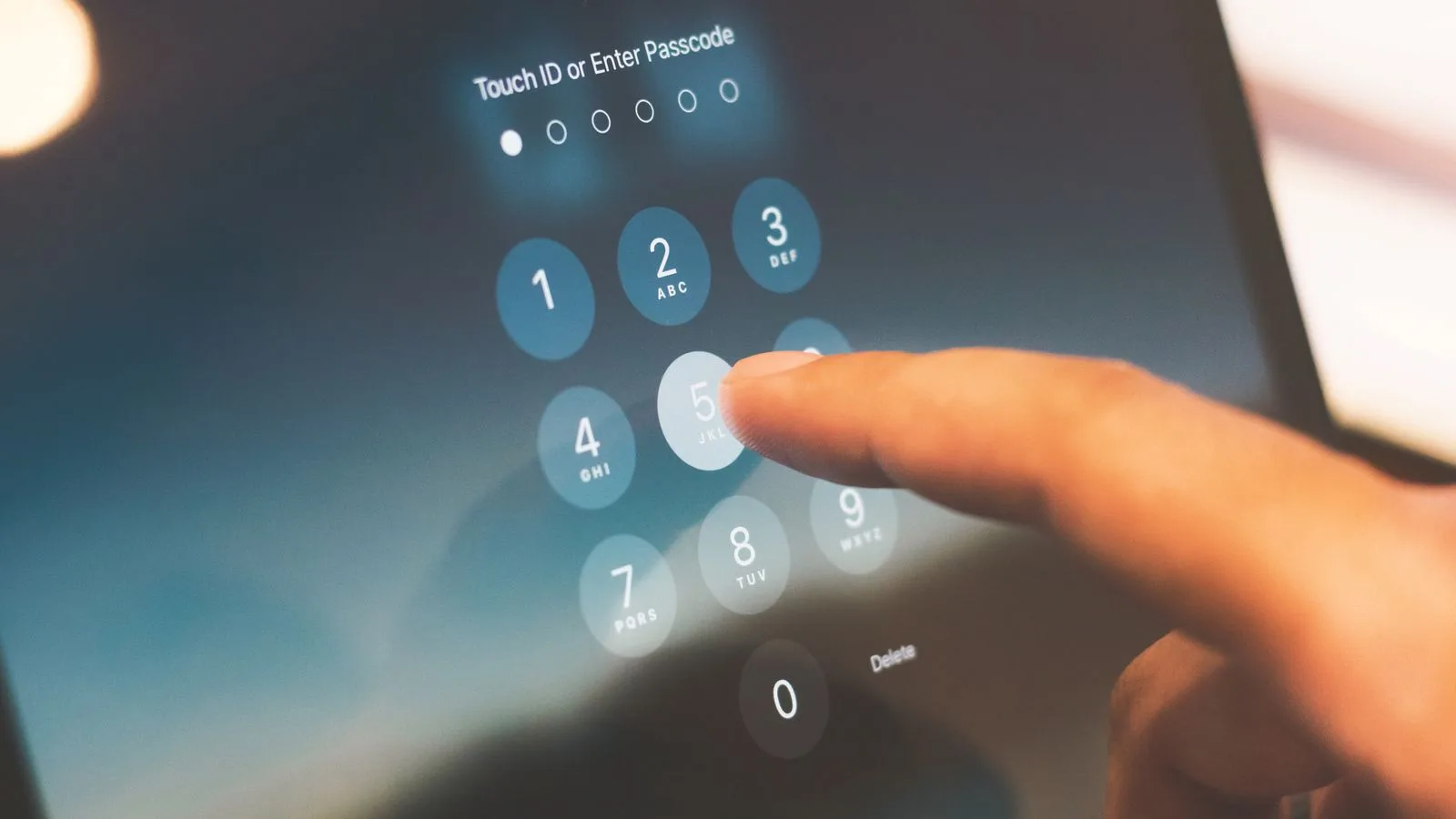
You can set up encrypted XChat messages by opening the Chat tab in the latest X app or on X.com, following the registration prompt, and creating a PIN that protects your private key. Before sending anything sensitive, confirm that the conversation shows a locked state and compare safety numbers with the other person. Keep the PIN somewhere secure: losing it can make your encrypted history unrecoverable.
This guide explains the setup, the privacy checks worth doing immediately, and the limits X itself documents. The steps apply to X Chat inside the X app and web interface; X also offers a separate X Chat app in supported markets.
What you need before setting up XChat
Update X to the newest available version, sign in to an existing account, and open the Chat tab. X says Chat works on iOS, Android, and the web. Both people must register for Chat before they can exchange encrypted messages.
The recipient must also meet at least one contact condition: they follow or subscribe to you, have messaged you before, have previously accepted an encrypted request from you, or belong to the same Premium Business or Premium Organization.
X's official About Chat guide is the most useful source for checking current eligibility and security behavior.
How to set up XChat encrypted messages
1. Open Chat and register your account
In the X app or on X.com, open the Chat tab from the navigation toolbar. If your account has not used Chat before, X will display a setup flow.
During registration, your device creates a public-private key pair. The public key lets other registered users start encrypted conversations with you, while the private key is needed to decrypt your messages.
2. Create a PIN you can recover
Follow the prompt to create a Chat PIN. X says the PIN does not leave your device. It protects the private key that lets you restore encrypted conversations on another device.
Do not reuse your phone unlock code, banking PIN, or account password. Save the Chat PIN in a reputable password manager instead of a note or screenshot. If you are planning for a lost-phone scenario, our guide to recovering passkeys after losing a phone offers a useful account-recovery checklist that also applies here: keep more than one trusted device and verify recovery options before an emergency.
3. Start a conversation and check the lock
Tap the compose button, search for the recipient, write your message, and send it. Look at the icon beside the send button before sharing private information.
If the other person has not registered for Chat, X cannot find a public key for them. The message will be sent unencrypted, and X indicates this with an unlocked icon. Wait until the recipient completes Chat registration and the conversation reports that encryption is active.
4. Accept message requests before treating them as private
A first message request to someone who does not follow you may be unencrypted. X keeps these requests in a separate inbox until the recipient accepts or ignores them.
Once accepted and both accounts are registered, X tells the participants when the conversation becomes encrypted. This means the safest practice is simple: never put passwords, recovery codes, private documents, or sensitive personal details in an initial request.
Verify the conversation with safety numbers
Encryption protects message content, but you should still confirm that you are talking to the intended person. Open the conversation information screen and locate its safety numbers. Compare them through a second trusted channel, ideally in person or during a known phone call.
X says the number is derived from both participants' public keys. Matching numbers provide a check that messages are associated with the expected keys. Repeat this verification if a contact reports an account compromise or if the app warns that security information changed.
For the X account itself, enable a passkey or app-based two-factor authentication as well. Encryption cannot help if an attacker takes control of your account. X provides official steps for adding a passkey, while our guide explains how to log X out of other devices if you see an unfamiliar session.
How to turn on disappearing messages
Open the conversation information screen, choose Disappearing messages, and select a duration. X says messages expire from participating devices and its servers after the selected period.
Disappearing messages reduce long-term exposure, but they are not a promise that the content can never be saved. A recipient can photograph the screen, copy information elsewhere, or preserve a file before it expires. Use the feature for retention control, not as a substitute for judgment.
What XChat encrypts—and what it does not
X says an encrypted Chat protects message text, links, reactions, media, and files before they leave the sender's device and while stored on X infrastructure. Group messages and media can also be encrypted.
Important limits remain:
- Metadata is not encrypted. X can retain information such as who communicated and when. If you share an X post inside Chat, X can record that the post was shared.
- Older DMs do not become encrypted automatically. Messages sent before a conversation upgrades to Chat remain legacy messages.
- The current design is not forward secure. X says a compromised device private key could expose all encrypted Chat messages sent or received by that device.
- Reporting reveals the selected message. Reporting a Chat message sends its content and associated metadata to X for review.
- Sending content to Grok removes that copy from the encrypted boundary. When you choose Ask Grok or edit an image with Grok, X says the selected text or image is no longer encrypted for that action.
X's electronic communications notice, effective April 23, 2026, independently confirms that Chat metadata is not encrypted and that the implementation is not currently forward secure.
What happens if you forget the XChat PIN?
If you still have a device that is logged in and already using Chat, reset the PIN from that active device. Do this before signing out or replacing the phone.
If no active Chat device can reset it, X warns that you may be unable to recover your encrypted conversation history. On iOS, the device-managed passcode option can store the passcode in iCloud Keychain, but you should verify that the option is enabled and that you can access the associated Apple account.
X uses the open-source Juicebox protocol to split the protected private key across three server realms. Its hardware-backed realms enforce a strict counter: after 20 incorrect PIN attempts, the required key shares become permanently inaccessible. Do not repeatedly guess.
What logging out does to encrypted messages
Logging out deletes Chat messages and keys from that device, without deleting them from your other logged-in devices. If you use both the X app and the separate X Chat app, X says you must sign out of both to remove the messages from that phone.
Before logging out:
- Confirm the PIN is stored safely.
- Keep at least one other trusted device registered with Chat if possible.
- Check that the second device can open recent encrypted conversations.
- Only then sign out of the device you are retiring.
Why does XChat show an unlocked icon?
The most common reason is that the recipient has not registered for Chat. Ask them to update X, open the Chat tab, and complete the PIN setup. A request may also remain unencrypted until the recipient accepts it.
If both accounts are registered but the chat still appears unlocked, update the app, restart it, and begin a new conversation from the compose button. Avoid sending sensitive content while troubleshooting. Availability may vary during rollout, and X says Chat is provided without a guaranteed service level.
Can you unsend an encrypted XChat message?
Yes. Long-press the encrypted message and choose the unsend option. X says this removes it from the recipient's inbox. This is available for encrypted messages, not necessarily every legacy DM.
Deleting a conversation from your own account is different: it removes the data from your devices, but the other participant may retain their copy. Deleting or leaving a conversation also does not stop that person from messaging you again; block the account if you want to prevent future contact.
A safer XChat setup checklist
- Use the latest X app and complete Chat registration.
- Create a unique PIN and store it in a password manager.
- Confirm the locked state before sharing anything private.
- Never include sensitive information in an unaccepted message request.
- Compare safety numbers through another trusted channel.
- Enable an X passkey or app-based two-factor authentication.
- Remember that metadata is visible and the system lacks forward secrecy.
- Do not send confidential text or images to Grok from the Chat context menu.
- Test recovery on another trusted device before logging out of the old one.
Bottom line
XChat can encrypt individual and group messages, files, links, reactions, and media, but safe use depends on checking the lock state and preserving the PIN. Treat first-time requests as public until accepted, verify safety numbers for sensitive conversations, and remember that metadata is not encrypted.
For creators who also use X professionally, review the platform's separate creator rewards changes; messaging security and monetization settings require different checks.