How to Turn Off Facebook Camera Roll AI Suggestions
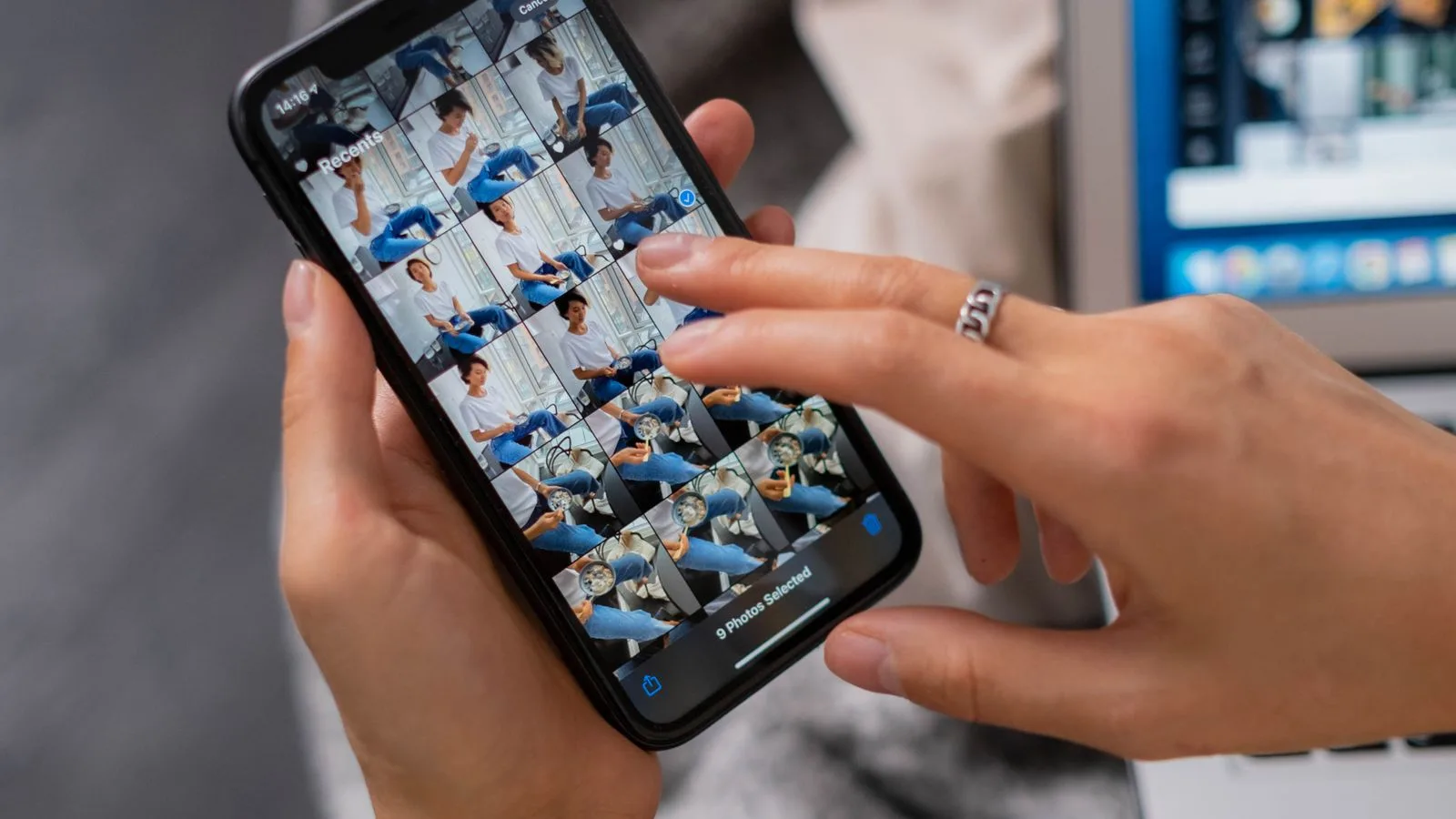
To stop Facebook from using your phone’s camera roll for sharing suggestions, open the Facebook app and go to Menu → Settings & privacy → Settings → Camera roll sharing suggestions. Turn off both the option for custom or AI-powered suggestions and the option that shows camera-roll suggestions while you browse Facebook.
For stronger protection, also limit Facebook’s Photos permission in your iPhone or Android settings. That second step prevents the app from continuing to access your full photo library even if an in-app setting changes later.
Meta says camera-roll sharing suggestions are opt-in and can be turned off at any time. In June 2026, the company expanded the feature with collage cutout templates and new transition effects, making this a good time to review what your Facebook app can see.
How to turn off Facebook Camera Roll Sharing Suggestions
The wording can vary slightly by Facebook app version and region, but the current path is:
- Open the Facebook app on your iPhone or Android phone.
- Tap Menu, represented by your profile picture or the three-line menu button.
- Tap Settings & privacy.
- Tap Settings.
- Scroll to the Preferences section.
- Tap Camera roll sharing suggestions.
- Turn off Custom sharing suggestions from your camera roll or the similarly worded cloud-processing option.
- Turn off Get camera roll suggestions when you’re browsing Facebook.
If you only see one switch, disable the switch that is available. Meta rolls out interface changes gradually, so accounts can show different labels or a different number of options.
You can also reach the camera-roll settings while creating a Story or choosing a photo for a post. Look for the settings icon on the gallery screen, then open Camera roll settings. Using the main Settings page is preferable because it lets you review all available switches in one place.
What Facebook camera-roll suggestions do
Facebook can use photos and videos from your phone to prepare private content suggestions, such as:
- Collages made from related photos.
- Short video montages with transitions.
- Recaps based on recent events or groups of images.
- AI-styled or edited versions of photos.
- Prompts to share a photo while browsing Facebook.
Meta’s June 15, 2026 Facebook product update says these suggestions remain opt-in and can be disabled at any time. The finished suggestions are not automatically posted; you decide whether to share them.
The important distinction is that a suggestion can involve media that you have not posted to Facebook. If cloud processing is enabled, the app needs to send relevant camera-roll media to Meta’s systems to generate those edits. That is different from manually selecting one photo to upload in a post.
Turn off Facebook photo access on iPhone
Disabling Facebook’s own suggestion settings stops the feature. Restricting the iPhone permission adds a device-level safeguard.
- Open the iPhone Settings app.
- Tap Privacy & Security.
- Tap Photos.
- Select Facebook.
- Choose None if you do not want Facebook to access your photo library.
- If you still post photos, choose Limited Access or Selected Photos, depending on your iOS version, and approve only the images you want Facebook to see.
Apple explains that third-party app access can be reviewed at any time under Privacy & Security. Its iPhone privacy guide also recommends checking the App Privacy Report if you want to review how granted permissions and network access are being used.
Choosing limited access is usually the best compromise. You can upload selected photos without granting Facebook a view of the entire library.
Turn off Facebook photo access on Android
Android menus differ slightly between Samsung Galaxy, Google Pixel, and other manufacturers, but the standard path is:
- Open Settings on your phone.
- Tap Apps.
- Select Facebook. Tap See all apps first if necessary.
- Tap Permissions.
- Tap Photos and videos.
- Choose Don’t allow, or select the option that permits access only to chosen photos and videos if your Android version provides it.
Google’s official Android app-permissions guide confirms that permissions can be changed per app and lists “Photos and videos” as a separate permission category.
If you select “Don’t allow,” Facebook can still open Android’s system photo picker when you deliberately attach media, depending on your phone and app version. The picker shares only the items you choose rather than exposing the full library.
Should you disable both Facebook switches?
Yes, if your goal is to stop camera-roll recommendations completely. The two controls serve related but different purposes:
- Custom or AI sharing suggestions: Used to prepare collages, montages, restyled images, or other creative ideas from camera-roll media.
- Suggestions while browsing: Surfaces photos or videos from your device inside Facebook as reminders to share them.
Turning off only the browsing switch may remove prompts from your Feed while leaving creative suggestions available elsewhere. Turning off both is the clearest choice for users who do not want Facebook analyzing or surfacing unposted media.
Does turning off the feature delete your photos?
No. Turning off a Facebook suggestion setting does not delete the original photos or videos stored on your phone. It changes whether Facebook can use that camera-roll content for the feature.
It also does not remove photos you have already posted to Facebook. To remove published media, delete the relevant Facebook post, Story, album item, or Reel separately.
Do not confuse camera-roll access with account security. If you suspect somebody else has entered your account, follow our guide to log out of Facebook on all devices and secure the account, then change the password and enable two-factor authentication.
Does Facebook use camera-roll suggestions for ads or AI training?
Meta says the camera-roll suggestion feature is opt-in. Its public description emphasizes that suggestions are private until you choose to share them. However, using an AI edit or publishing the result creates a different interaction from simply keeping an unedited photo on your device.
The safest practical approach is to avoid granting full-library access when it is unnecessary. Select individual photos when posting, disable cloud-processing suggestions, and review the setting again after major Facebook app updates.
Camera-roll permissions are also separate from your phone’s advertising identifier and app-tracking controls. If you want to reduce personalized advertising more broadly, use our guide on stopping ad tracking on Android and iPhone.
What to do if Camera Roll Sharing Suggestions is missing
Update the Facebook app
Install the latest Facebook version from the App Store or Google Play, close the app completely, and reopen it. Do not install an unofficial APK to obtain the feature or its settings.
Use Settings search
Facebook frequently moves menu items. Open Facebook Settings and search for camera roll, sharing suggestions, photos, or cloud processing.
Check the Story or post gallery
Open the Story composer or start a new post, enter the photo gallery, and look for its settings icon. Some accounts show the camera-roll control there before it appears in the main Preferences list.
Control access at the phone level
If Facebook does not display the in-app option, you can still restrict Photos access from iPhone or Android settings. Device permissions take priority over an app’s request to read the library.
The feature may not be available in your region
Meta deploys features gradually. If the setting and suggestions have never appeared, your account may not have received them. There is nothing to disable inside Facebook in that case, but limiting the operating-system permission is still useful.
A safer way to upload photos to Facebook
- Keep Facebook’s camera-roll suggestion switches off.
- Give Facebook access only to selected photos, not the full library.
- Before sharing, check the photo for addresses, IDs, screens, children’s information, and other private details.
- Remove location metadata when it is not needed.
- Review the post audience before publishing.
- Recheck app permissions after reinstalling Facebook or moving to a new phone.
This workflow takes a few extra seconds but gives Facebook only the media needed for the current post.
Frequently asked questions
Can Facebook see photos I never posted?
If camera-roll access and cloud-powered sharing suggestions are enabled, Facebook can process eligible media from your phone to create private suggestions, including content you have not posted. Disable both in-app switches and restrict the phone permission to prevent full-library access.
Will disabling camera-roll suggestions stop me from posting photos?
Not necessarily. On recent iPhone and Android versions, you can grant access to selected photos or use the system picker each time you attach an image.
Why do the setting names look different on my phone?
Facebook tests and rolls out interfaces by account, region, operating system, and app version. Look for wording that includes “camera roll,” “custom sharing suggestions,” “creative ideas,” or “cloud processing.”
Are suggested collages posted automatically?
No. Meta describes them as private suggestions that you can review before deciding whether to share.
Do I need to change both Facebook and phone settings?
Changing both provides the strongest control. Facebook’s switch disables the feature; the iOS or Android permission limits the app’s underlying access to the photo library.
Settings and feature details were checked against Meta, Apple, and Google documentation on September 9, 2026. Menu labels may change as Facebook continues its rollout.