Microsoft Launches MAI-Transcribe-2: How to Use the New Speech API
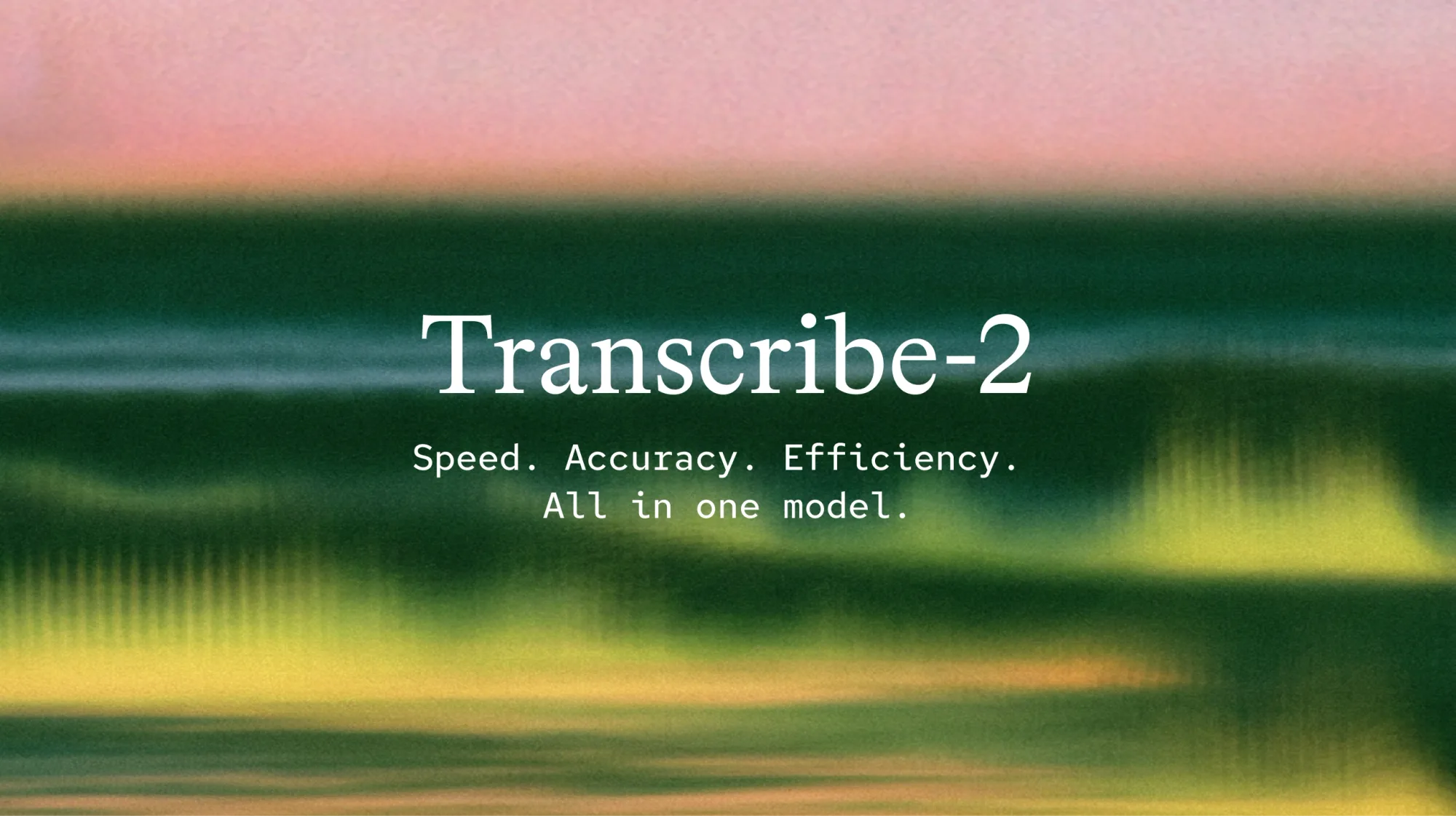
Microsoft launched MAI-Transcribe-2 on September 3, 2026, and developers can try it in MAI Playground or call it through the Azure Speech Fast Transcription REST API. For the API, create a Microsoft Foundry Speech resource, send a WAV, MP3, or FLAC file to the transcription endpoint, set enhancedMode.enabled to true, and select MAI-Transcribe-2 as the model.
The new model adds speaker diarization, word-level timestamps, keyword biasing, automatic language detection, and clean or verbatim transcript styles across 60 languages. Microsoft is offering it for $0.10 per audio hour through the end of 2026, but the Azure integration is currently a public preview without a service-level agreement, so test it carefully before using it for production or regulated workloads.
What Microsoft announced
In its September 3 launch announcement, Microsoft described MAI-Transcribe-2 as its most capable transcription model to date. The company says it achieved a 5.2% average word-error rate on the multilingual FLEURS benchmark, ranked second on the Artificial Analysis speech-to-text accuracy leaderboard, and can process long recordings substantially faster than leading alternatives.
Those are benchmark results and vendor claims, not a guarantee for every recording. Accuracy can change with language, accent, microphone quality, background noise, overlapping speakers, and specialist vocabulary. A useful evaluation should therefore include audio from the environment where the model will actually run.
The launch matters because Microsoft is combining several features that previously required separate processing steps:
- Speaker diarization labels different speakers in the same recording.
- Word-level timestamps show when each recognized word occurred.
- Keyword biasing helps with names, abbreviations, product terms, and specialist vocabulary.
- Clean transcripts remove filler words for readable notes and captions.
- Verbatim transcripts preserve fillers and false starts for review or compliance use cases.
- Automatic language identification avoids requiring a language code for every file.
- Code switching supports some conversations that move between languages.
MAI-Transcribe-2 availability, formats, and limits
Microsoft’s official model card lists WAV, MP3, and FLAC as supported inputs, with a maximum file size of 300 MB and maximum duration of two hours. The model supports 60 languages, including Arabic, English, French, German, Hindi, Spanish, Turkish, Urdu, and Vietnamese.
| Item | Launch information |
|---|---|
| Release date | September 3, 2026 |
| Access | MAI Playground and Azure Speech Fast Transcription API; Microsoft also listed OpenRouter access |
| Azure status | Public preview; no SLA and not recommended by Microsoft for production workloads |
| Launch price | $0.10 per audio hour through the end of 2026 |
| Input formats | WAV, MP3, FLAC |
| Maximum input | 300 MB or two hours, according to the model card |
| Languages | 60, with automatic detection available |
Microsoft says requests are currently served from East US, West US, West US 2, North Europe, Central India, and Southeast Asia, with global access routed to those regions. Check the current region list before deployment because preview availability can change.
Method 1: Try MAI-Transcribe-2 in the Playground
The simplest way to evaluate the model is the MAI Playground. It is useful for testing a sample recording before creating an Azure integration.
- Open MAI Playground and sign in if prompted.
- Select the MAI-Transcribe-2 experience.
- Attach a supported MP3 or WAV recording, or record a short sample if the interface offers microphone input.
- Run the transcription.
- Review speaker labels, timestamps, language detection, punctuation, names, and technical terms.
- Repeat the test with noisy audio and multiple speakers that resemble the intended use case.
The Playground is a limited preview environment. Do not upload confidential meetings, medical conversations, customer calls, or legal recordings until your organization has reviewed the applicable Microsoft terms, data handling, retention, access controls, and consent requirements.
Method 2: Use MAI-Transcribe-2 through Azure Speech
1. Create the required Azure resource
According to the current Microsoft Learn guide for MAI-Transcribe, you need:
- An Azure subscription.
- A Microsoft Foundry resource for Speech.
- The resource name, subscription key, and supported region.
- A WAV, MP3, or FLAC audio file.
Create the Speech resource in the Azure portal and open its key and endpoint page. Store the key in an environment variable or secrets manager. Never paste a real production key into source code, a public repository, browser-side JavaScript, or a support ticket.
2. Send a basic REST request
Replace the resource name, key, and file path in this example:
curl --location \
  'https://YOUR_RESOURCE_NAME.cognitiveservices.azure.com/speechtotext/transcriptions:transcribe?api-version=2025-10-15' \
  --header 'Ocp-Apim-Subscription-Key: YOUR_SPEECH_RESOURCE_KEY' \
  --form 'audio=@"meeting.wav"' \
  --form 'definition={
    "enhancedMode": {
      "enabled": true,
      "model": "MAI-Transcribe-2"
    }
  }'
The two required model settings are:
enhancedMode.enabled: trueenhancedMode.model: "MAI-Transcribe-2"
The response contains the combined transcript and structured segments. Depending on the requested options, segments can include speaker numbers, language, offsets, durations, and word timing.
Add speaker diarization and word timestamps
For meetings, interviews, podcasts, and customer calls, enable diarization and timestamps together:
curl --location \
  'https://YOUR_RESOURCE_NAME.cognitiveservices.azure.com/speechtotext/transcriptions:transcribe?api-version=2025-10-15' \
  --header 'Ocp-Apim-Subscription-Key: YOUR_SPEECH_RESOURCE_KEY' \
  --form 'audio=@"interview.mp3"' \
  --form 'definition={
    "enhancedMode": {
      "enabled": true,
      "model": "MAI-Transcribe-2",
      "modelOptions": {
        "timestamps": "word",
        "transcribeStyle": "clean"
      }
    },
    "diarization": {
      "enabled": true
    }
  }'
timestamps accepts word, segment, or none. Word timestamps suit subtitle alignment and text-based editing, while segment timestamps produce a smaller response for meeting notes and search.
Diarization labels speakers numerically; it does not necessarily know their real names. Your application should map “speaker 0” and “speaker 1” only when it has a reliable, consented method to identify participants.
Choose clean or verbatim transcription
The default style is verbatim. It preserves filler words, false starts, and self-corrections. Use it for quality assurance, call analysis, interviews, or other workflows where the exact speech pattern matters.
Set transcribeStyle to clean for readable captions, articles, notes, and searchable archives:
"modelOptions": {
  "transcribeStyle": "clean"
}
| Style | Best for | Trade-off |
|---|---|---|
| Verbatim | Compliance review, interviews, conversation analysis | More fillers and false starts |
| Clean | Captions, meeting notes, publishing workflows | Not a word-for-word record of every disfluency |
Keep the original audio when accuracy or auditability matters. A cleaned transcript is an edited representation and should not silently replace a source recording in legal, medical, or compliance processes.
Improve names and technical terms with keyword biasing
Add difficult words through phraseList.phrases:
"phraseList": {
  "phrases": [
    "MAI-Transcribe-2",
    "AllYourTech",
    "DNS over HTTPS",
    "Auracast"
  ]
}
Microsoft describes these phrases as hints, not forced output. Include product names, people, acronyms, medications, or industry terminology that genuinely occurs in the recording. Avoid massive lists of unrelated keywords; they can make testing harder and obscure which terms improve recognition.
Evaluate exact names separately from overall word-error rate. A transcript can look accurate while still missing the proper nouns that matter most to a search, caption, or customer-support workflow.
Should you force a language?
Leave locales unspecified to use automatic language detection. If the model repeatedly identifies a single-language recording incorrectly, pass one language code:
"locales": ["en"]
Microsoft calls this a strong hint and recommends specifying it only when you are certain of the recording’s language. Do not force English on multilingual audio simply to get English output; transcription and translation are different tasks.
For mixed-language recordings, test real examples. Microsoft specifically highlights code switching for commonly blended pairs, but that does not guarantee equal performance for every language combination or dialect.
A practical test plan before production
Do not select a transcription model from a single polished demo. Build a representative test set and compare results with a human-reviewed reference transcript.
- Collect representative audio: Include quiet and noisy rooms, phone calls, headsets, accents, long pauses, and overlapping speakers.
- Protect consent and privacy: Remove sensitive details or use recordings approved for model evaluation.
- Create reference transcripts: Have a qualified reviewer produce the expected text and speaker turns.
- Measure critical errors: Track names, numbers, negations, dates, technical terms, and speaker attribution—not only overall word-error rate.
- Compare styles: Test clean and verbatim outputs against the actual downstream task.
- Measure latency and cost: Include upload time, retries, storage, review, and post-processing.
- Test failure behavior: Try unsupported formats, oversized files, silence, corrupted audio, invalid keys, and rate limits.
- Require human review: Keep approval steps for medical notes, legal records, financial instructions, accessibility captions, and published quotations.
AI output should be checked even when benchmark scores are strong. Our guide to fact-checking AI answers and citations offers a reusable verification process for claims derived from automated systems.
How much will MAI-Transcribe-2 cost?
At the announced promotional rate of $0.10 per audio hour, 100 hours of submitted audio would have a model charge of $10, before any separate Azure services, storage, networking, taxes, or application costs. This is a launch offer through the end of 2026, so do not hard-code it into long-term customer pricing.
Use the current Azure billing page and your resource region to confirm the actual charge before processing a large archive. Add a spending alert, cap batch sizes, and log duration so unexpected retries do not duplicate cost.
Where the new model is most useful
MAI-Transcribe-2 is particularly relevant for:
- Speaker-labelled meeting and interview transcripts.
- Podcast show notes and searchable episode archives.
- Video captions with precise word alignment.
- Call-center quality review and coaching.
- Lecture and training-content accessibility.
- Voice-agent testing and conversation analysis.
- Domain-heavy audio that benefits from keyword biasing.
After creating a transcript, a research assistant can help organize it—but the source text should remain available for checking. See our comparison of NotebookLM and ChatGPT for source-based study and analysis for the different strengths of grounded research and flexible content transformation.
Important preview limitations
Microsoft labels the Azure feature as public preview, provided without an SLA and not recommended for production workloads. Features, regions, limits, response formats, or pricing can change before general availability.
That means teams should:
- Pin the documented API version and monitor change notices.
- Validate the response schema instead of assuming every field exists.
- Use timeouts, retries with backoff, and idempotent job tracking.
- Keep the source audio until the transcript passes review.
- Avoid sole dependence on a preview API for critical live captions.
- Review data residency, privacy, and retention requirements.
- Never use an automated transcript as an unquestioned clinical, legal, or financial record.
Bottom line
MAI-Transcribe-2 is a significant Microsoft speech-AI launch because it puts multilingual recognition, speaker separation, timestamps, terminology hints, and clean/verbatim formatting into one model at an aggressive introductory price.
For a quick test, start with MAI Playground. For an application, use Azure Speech Fast Transcription with enhancedMode.enabled set to true and the model set to MAI-Transcribe-2. Test it against your own recordings, protect credentials and sensitive audio, and treat the current Azure release as a preview until Microsoft provides production support and an SLA.