How to Use Quick Machine Recovery in Windows 11 to Fix Boot Failures
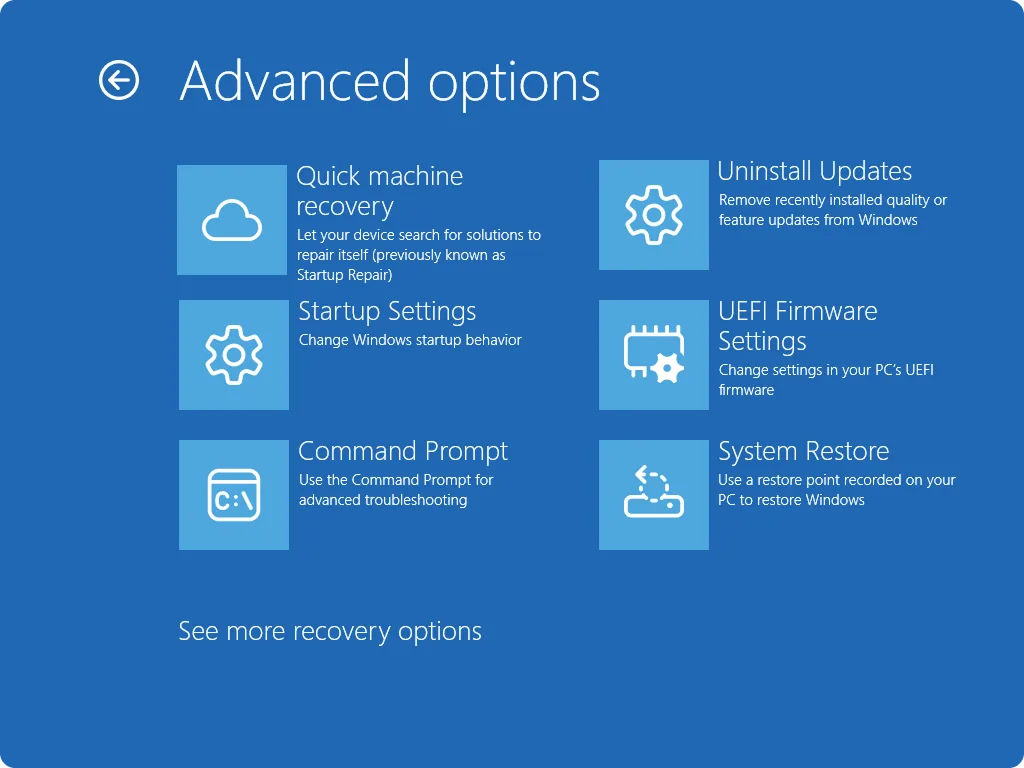
Quick Machine Recovery can repair some Windows 11 PCs that repeatedly fail to start because of a known, widespread problem. Let Windows enter recovery automatically after repeated failed boots, or open Windows Recovery Environment (Windows RE) yourself and select Troubleshoot > Advanced options > Quick machine recovery. Connect the PC to the internet; Windows checks Microsoft’s recovery service for a targeted fix, applies it if one is available, and restarts.
The important limitation is that Quick Machine Recovery is not a universal boot repair tool. It helps when Microsoft has identified the same startup failure across many devices and has published a remediation. For a damaged boot configuration, failed drive, bad driver on one PC, or another isolated fault, you may need Startup Repair, uninstalling an update, System Restore, or hardware diagnostics instead.
What Quick Machine Recovery actually does
Quick Machine Recovery, often shortened to QMR, is a cloud-assisted recovery feature for Windows 11. It runs inside Windows RE, where it can work even when the normal Windows desktop will not load.
According to Microsoft’s Quick Machine Recovery documentation, the process has four main stages:
- Detection: Windows recognizes repeated startup failures.
- Recovery: The computer enters Windows RE and attempts to connect through Ethernet or supported WPA/WPA2 Wi-Fi.
- Cloud check: It contacts Microsoft’s recovery service through Windows Update and looks for a remediation that matches the widespread issue.
- Repair: If Microsoft has supplied a fix, Windows downloads it, applies it, and restarts the computer.
This is more focused than resetting the PC. QMR is intended to apply a specific repair rather than erase personal files, remove applications, or restore every Windows setting to its default. If no matching fix exists, it returns you to the familiar Windows recovery tools.
Before you begin
If the laptop still starts occasionally, prepare before the next failure. Connect it to power, back up important files, and make sure you can access the recovery key for any BitLocker-encrypted drive. Some Windows recovery operations can request that key even though QMR itself may complete without it.
You can retrieve a recovery key associated with a Microsoft account from Microsoft’s official recovery-key page. On a work or school computer, the key and QMR policy may be controlled by the organization, so contact the IT administrator rather than changing recovery settings yourself.
QMR also needs a network connection. Ethernet is the simplest choice in Windows RE. Supported Wi-Fi can work, but captive portals—such as hotel or public networks that require a browser sign-in—are a poor fit for recovery mode.
How to enable Quick Machine Recovery while Windows works
On a supported Windows 11 PC:
- Open Settings.
- Select System > Recovery.
- Open Quick machine recovery.
- Turn on the Quick machine recovery switch.
- If Windows shows retry or restart interval controls, keep the defaults unless an administrator has a reason to change them.
Microsoft has been expanding automatic availability. In a February 17, 2026 Windows Insider announcement, it said QMR would turn on automatically for unmanaged Windows Professional devices that are neither domain-joined nor enrolled in enterprise endpoint management. Managed and domain-joined PCs can remain subject to organization policy, and feature rollout can vary by device.
If the entry is missing, install current Windows updates when the PC is stable, restart, and check again. Do not assume a missing menu means the recovery environment is broken; the feature may not yet be available for that device or may be disabled by policy.
Method 1: Let Windows start QMR automatically
This is the normal path when the computer cannot boot.
- Start the PC normally.
- If a known widespread issue causes repeated startup failures, Windows should detect the pattern and enter Windows RE.
- Select or confirm a wired or supported Wi-Fi connection if prompted.
- Allow Quick Machine Recovery to search Microsoft’s service.
- If it finds a remediation, keep the PC powered on while it downloads and applies the repair.
- Let the machine restart and test a normal sign-in.
A message that no solution was found does not mean the computer is unrecoverable. It means Microsoft’s cloud service does not currently have a matching QMR remediation. Return to Advanced options and continue with the local recovery steps later in this guide.
Method 2: Start Quick Machine Recovery manually
You can trigger QMR from Windows RE even if Windows did not open it automatically.
If you can still reach the desktop
- Open Settings > System > Recovery.
- Beside Advanced startup, select Restart now.
- After the PC restarts, choose Troubleshoot > Advanced options > Quick machine recovery.
- Connect to the network and let Windows search for a solution.
You can also hold Shift while selecting Power > Restart from the Start menu or sign-in screen. Microsoft lists these and other routes in its guide to accessing Windows Recovery Environment.
If Windows will not reach the sign-in screen
After several failed starts, Windows may open Automatic Repair or Windows RE on its own. From the Choose an option screen, follow:
Troubleshoot > Advanced options > Quick machine recovery
Avoid repeatedly cutting power merely to force recovery unless you have no safer option. Interrupting storage activity can create another problem. If the PC offers a recovery button, firmware recovery menu, or manufacturer-specific key, follow the device maker’s instructions.
What to expect during the scan
QMR first initializes networking in the recovery environment. It then sends enough device and failure information to look for the appropriate remediation through Microsoft’s service. A successful match may download and apply automatically before the PC restarts.
Keep these expectations realistic:
- The process requires internet access; it is not an offline repair.
- A remediation must already exist for the detected widespread issue.
- The scan may return no fix even when the PC genuinely has a boot problem.
- QMR does not prove that the SSD, memory, motherboard, or other hardware is healthy.
- Do not shut down the PC while a remediation is being applied.
Quick Machine Recovery vs. Startup Repair
| Feature | Quick Machine Recovery | Startup Repair |
|---|---|---|
| Best for | A known, widespread startup failure with a Microsoft remediation | Common local startup problems on one PC |
| Source of repair | Microsoft’s cloud recovery service through Windows Update | Diagnostic and repair tools already in Windows RE |
| Internet required | Yes | Usually no |
| Resets the PC | No | No |
| What happens if it fails | Returns access to traditional recovery options | Reports that it could not repair the PC |
QMR builds on Windows recovery rather than replacing it. If QMR finds nothing, Microsoft recommends Startup Repair for problems such as damaged system files, corrupted boot configuration data, incompatible drivers, and some registry errors.
What to try when QMR finds no solution
Use the least destructive option that matches what happened immediately before the failure. Microsoft’s Windows recovery-options guide is a useful decision reference.
1. Run Startup Repair
In Windows RE, select Troubleshoot > Advanced options > Startup Repair > Restart. This is a sensible next step when the fault appears limited to the computer rather than a widespread Windows incident.
2. Uninstall the latest update
If the PC stopped starting directly after an update, open Advanced options > Uninstall Updates. Start with the latest quality update. Remove a feature update only when there is a clear reason and the option is available.
3. Use System Restore
If restore points exist, System Restore can roll system files, drivers, and registry settings back to an earlier state without intentionally deleting personal documents. Recently installed applications or drivers may be removed.
4. Try Safe Mode
Choose Startup Settings, restart, and select Safe Mode. If Windows starts there, remove a recently installed driver or application, check Device Manager, and install a corrected update.
5. Check hardware symptoms
A drive that disappears from firmware, repeated clicking noises, memory errors, unexpected power loss, or overheating points away from QMR. Run the manufacturer’s built-in diagnostics and avoid repeated repair attempts on a drive that may be failing.
6. Reset or reinstall only after safer options
Reset this PC and reinstalling Windows are escalation steps, not the first response. Back up recoverable data and verify your BitLocker key before continuing. Even “Keep my files” removes applications and changes settings.
Fix common QMR problems
Quick Machine Recovery is missing
Confirm that the PC runs Windows 11 and is fully updated. Check Settings > System > Recovery while Windows works. On an organization-managed device, ask the administrator whether policy disables QMR. Availability may vary during staged rollout.
Windows RE cannot connect to Wi-Fi
Try Ethernet if possible. Use a WPA/WPA2 home network without a captive portal. If Windows starts again but Wi-Fi remains absent on the desktop, work through our guide to fixing a missing Wi-Fi option in Windows 11, including adapter, service, and driver checks.
The recovery scan keeps repeating
If repeated scans never find a remediation, stop retrying and move to Startup Repair or the recovery option that best matches the cause. A loop can indicate that the failure is not covered by a cloud fix.
The PC boots but remains unstable
Back up data first. Then install pending Windows and manufacturer driver updates, check free disk space, and run hardware diagnostics. Our guide to freeing Windows 11 storage without deleting personal files can help if a nearly full system drive is interfering with updates.
A safe recovery checklist
- Keep a laptop connected to its charger.
- Use Ethernet or a trusted home Wi-Fi network.
- Have the BitLocker recovery key available.
- Let QMR complete without forcing a shutdown.
- If there is no matching fix, use Startup Repair before considering a reset.
- Back up accessible files before uninstalling major updates, resetting, or reinstalling Windows.
- Escalate to hardware diagnostics when the SSD, memory, power, or cooling system shows warning signs.
Bottom line
Quick Machine Recovery is worth trying first when Windows 11 repeatedly fails to boot and Microsoft may be responding to a known widespread incident. It is quick, targeted, cloud-assisted, and does not reset the PC. Open it through Windows RE > Troubleshoot > Advanced options, connect to the internet, and let it look for a remediation.
If it reports that no solution is available, switch strategies instead of running the same scan indefinitely. Startup Repair, uninstalling a recent update, System Restore, Safe Mode, and hardware diagnostics cover the local failures that QMR was not designed to solve.