How to Check Laptop Battery Health With a Windows 11 Battery Report
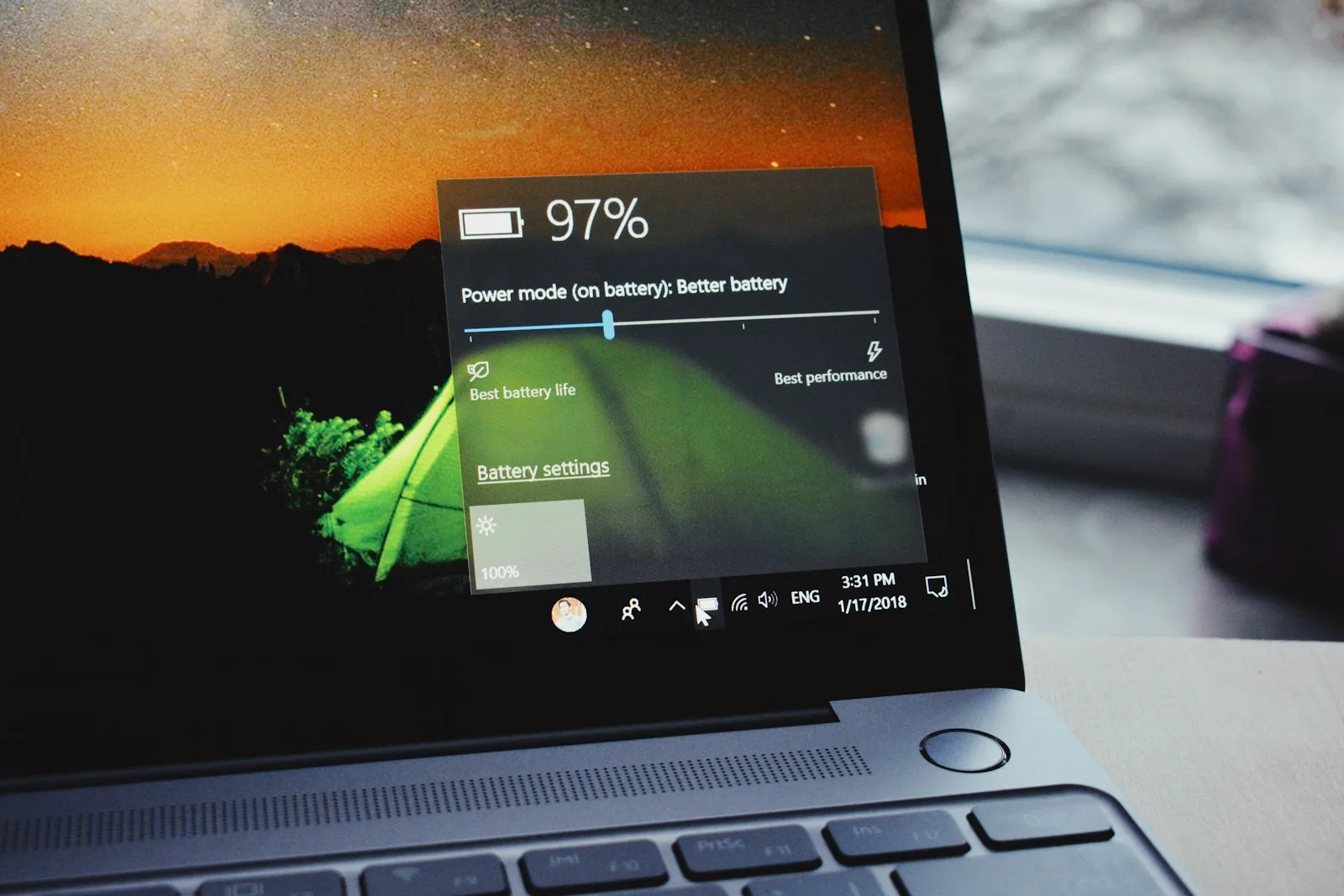
To check laptop battery health in Windows 11, open Command Prompt as administrator, run powercfg /batteryreport, and compare Full Charge Capacity with Design Capacity in the generated HTML report. Divide Full Charge Capacity by Design Capacity and multiply by 100. For example, 42,000 mWh ÷ 50,000 mWh × 100 equals about 84% estimated capacity.
The report is built into Windows, costs nothing, and does not require a battery-health app. It can show capacity history, charge cycles when the hardware reports them, recent drain, and estimated runtime. However, its figures come from the laptop’s battery firmware, so use trends across several reports—not one unusual reading—to decide whether a battery is worn.
Create a battery report in Windows 11
- Connect the laptop to power if its charge is very low.
- Select Start and type Command Prompt.
- Right-click Command Prompt and choose Run as administrator.
- Enter the following command and press Enter:
powercfg /batteryreport
Windows displays the location of the new HTML file. Open File Explorer, browse to that location, and double-click battery-report.html to view it in your browser.
If you want the file in an easy-to-find location, specify the output path:
powercfg /batteryreport /output "%USERPROFILE%\Desktop\battery-report.html"
Microsoft documents the same process in its official guide to caring for your battery in Windows. The report stays on your computer unless you choose to share it.
Calculate your laptop’s estimated battery health
Open the report and find Installed batteries. The two most useful values are:
- Design Capacity: The amount of energy the battery was designed to hold when new.
- Full Charge Capacity: The amount Windows currently believes it can hold at a full charge.
Use this formula:
Battery health estimate = Full Charge Capacity ÷ Design Capacity × 100
Example:
41,500 mWh ÷ 50,000 mWh × 100 = 83%
This means the battery currently stores roughly 83% of its original rated capacity. It does not mean the laptop will deliver exactly 83% of its original runtime, because screen brightness, background activity, power mode, temperature, wireless use, and component efficiency also affect how long a charge lasts.
A simple interpretation guide
- Above 90%: Typically consistent with a relatively healthy battery.
- 80% to 90%: Normal wear for many regularly used laptops.
- 60% to 80%: Noticeable aging; replacement may be worthwhile if runtime disrupts your work.
- Below 60%: Heavily reduced capacity, especially if shutdowns or rapid percentage drops also occur.
These ranges are practical guidelines, not a universal manufacturer warranty standard. Battery service criteria vary by brand, model, age, cycle count, and warranty terms.
What every section of the battery report means
Installed batteries
This section lists the battery name, manufacturer, serial number, chemistry, Design Capacity, Full Charge Capacity, and Cycle Count when supported. A two-in-one laptop or detachable device may report more than one battery.
Do not publish or send the full report casually. It can contain the computer name and battery identifiers. If you need technical support, share only the relevant capacity and usage sections after reviewing the file.
Recent usage
Recent usage records power-state changes over the last few days. It helps answer questions such as:
- Did the laptop continue draining while it was supposed to sleep?
- Was it on battery, connected standby, suspended, or plugged in?
- Did the charge fall suddenly rather than gradually?
A single sudden drop can result from a reporting correction. Repeated drops at a similar percentage are more meaningful and may indicate calibration trouble or an aging cell.
Battery usage
The battery usage graph shows drain over time. Look for unusually steep declines during light work or substantial loss while the lid was closed. Compare the times with your memory of what the laptop was doing.
For app-level investigation, open Settings → System → Power & battery → Battery usage. Windows can show which apps consumed the most energy during the selected period. If you also use Android, our guide to stopping background battery drain on Android explains a similar process for identifying power-hungry apps on a phone.
Usage history
Usage history separates time spent on battery from time connected to AC power. This is useful when a laptop spends most of its life docked: a low cycle count does not necessarily mean the battery avoided wear, because temperature and long periods at a high state of charge also influence aging.
Battery capacity history
This is the most valuable section for judging a trend. It lists Full Charge Capacity alongside Design Capacity at different dates.
Gradual decline over months is expected. A large one-day change can come from firmware recalculating capacity, a BIOS update, calibration, a battery replacement, or incorrect telemetry. Generate another report after several normal charge and discharge sessions before treating one jump as permanent.
Battery life estimates
Windows estimates runtime based on observed drain at the battery’s current capacity, and may compare it with theoretical runtime at the original design capacity. These are projections, not guaranteed hours.
A laptop used for gaming, video rendering, or AI workloads will last far less than the same laptop displaying documents at low brightness. Compare estimates from similar workloads rather than comparing a gaming session with an idle day.
What Cycle Count tells you
A charge cycle generally represents cumulative use equal to 100% of the battery’s capacity. Using 50% today and another 50% later can add up to one cycle; it does not require a single discharge from 100% to zero.
Cycle Count is useful, but it is not a complete health score. Two batteries with the same count can age differently because of heat, charging behavior, storage conditions, power demand, and manufacturing variation.
If the Cycle Count field is blank or shows a dash, Windows may not be receiving that value from the battery firmware. This is common on some models and does not by itself prove the battery is defective. Check the manufacturer’s support or diagnostic app for model-specific information.
Why Full Charge Capacity can look wrong
It is higher than Design Capacity
A slightly higher reading can appear because rated capacity is nominal, individual batteries vary, and firmware estimates change. Repeat the report after normal use. A dramatically impossible value points more toward a reporting or firmware problem than a magically oversized battery.
It suddenly dropped after an update
A BIOS, firmware, chipset, or Windows update may change how the battery controller reports capacity. Install all official updates, restart, then observe the trend for several days. Do not immediately perform repeated deep discharges.
The report says the battery is healthy but runtime is poor
Capacity is only one part of runtime. Check screen brightness, refresh rate, power mode, startup programs, browsers with many active tabs, dedicated GPU use, video calls, location services, and apps running in the background.
Task-cleaning utilities are not automatically the answer. Our Microsoft PC Manager review explains which cleanup features duplicate tools already built into Windows and where expectations should remain modest.
The percentage falls from 30% to zero
That pattern can indicate inaccurate state-of-charge reporting or a weak cell that cannot maintain voltage under load. Save your work, install official BIOS and battery-related updates, and run the manufacturer’s hardware diagnostic. If it repeats, arrange service rather than relying on the displayed percentage.
Should you calibrate the battery?
Calibration can sometimes improve the accuracy of the percentage meter; it does not restore chemically lost capacity. Follow the laptop manufacturer’s procedure if it provides one. Some vendors include a calibration tool in BIOS or their support application.
Avoid routinely draining a lithium-ion battery to zero in an attempt to “train” it. Deep discharge is not a general maintenance requirement for modern lithium-ion batteries. If the manufacturer recommends one controlled calibration cycle to correct an inaccurate gauge, do it occasionally and specifically—not every week.
Use Smart charging when your laptop supports it
Some Windows laptops use Smart charging or a manufacturer-specific conservation mode to keep the battery below 100% during long periods on AC power. Microsoft explains that this behavior is intentional and can help reduce time spent fully charged.
When enabled, Windows may show a heart on the battery icon and a lower charge percentage even while the laptop is plugged in. This does not necessarily indicate a failed charger. Microsoft’s Smart charging guide notes that each manufacturer implements the feature differently, so the controls may be in a vendor app, BIOS, or device-specific utility.
If your charger is not keeping up under load, verify its power rating and charging protocol. Our guide to USB-C charger wattage explains why a compatible connector does not guarantee that a charger can deliver the power a laptop needs.
Signs that the battery needs professional attention
Capacity loss alone is usually an aging issue, not an emergency. Stop using the laptop on battery and seek service promptly if you notice:
- Battery swelling, a raised trackpad, separated case, or distorted keyboard
- Unusual heat while idle or charging
- A chemical smell, hissing, smoke, or discoloration
- Repeated shutdowns at moderate charge levels
- The battery is no longer detected or the laptop works only on AC power
Do not puncture, press, bend, or attempt to flatten a swollen battery. Shut the device down, disconnect power when safe, keep it away from flammable material, and contact the manufacturer or a qualified repair provider for handling instructions.
How to compare battery health over time
One report is a snapshot. For a more reliable picture:
- Generate a report now and record Design Capacity and Full Charge Capacity.
- Use the laptop normally for two to four weeks.
- Generate a second report under the same Windows and firmware setup.
- Compare Battery Capacity History and real-world runtime.
- Repeat only when behavior changes; daily checks create noise rather than insight.
Keep notes about major BIOS updates, battery replacements, or changes in workload. A downward trend that matches worsening runtime is more persuasive than one isolated percentage.
When should you replace the battery?
Consider replacement when reduced runtime interferes with normal use, the laptop shuts down unexpectedly, or the manufacturer’s diagnostic reports a service condition. An estimated capacity near or below 80% is often treated as meaningful wear, but it is not an automatic replacement command for every laptop.
Before buying a battery, confirm the exact laptop model and battery part number. Prefer the manufacturer or a reputable authorized supplier. Very cheap batteries with unclear cell origin, certification, or warranty can be a false economy.
Quick battery-report checklist
- Run
powercfg /batteryreportas administrator. - Open the generated HTML file.
- Compare Full Charge Capacity with Design Capacity.
- Calculate: full charge ÷ design × 100.
- Review Battery Capacity History, not just today’s figure.
- Check Recent Usage for drain during sleep.
- Treat blank Cycle Count as missing telemetry, not proof of failure.
- Use official firmware and diagnostic tools.
- Keep Smart charging enabled when you do not need a full charge.
- Arrange service immediately for swelling or abnormal heat.
Frequently asked questions
Does Windows 11 show an official battery health percentage?
Windows provides the underlying Design Capacity and Full Charge Capacity figures rather than a universal health percentage. You can estimate it with the formula in this guide. Some manufacturers display their own health status in a support app or BIOS diagnostic.
Is the Windows battery report accurate?
It is useful, but its accuracy depends on data supplied by the battery controller and firmware. Capacity history and real-world runtime over time are more reliable than one reading.
Can software restore Full Charge Capacity?
No utility can reverse normal chemical wear. Calibration may correct the meter’s estimate, and reducing heavy background use may improve runtime, but neither creates new physical battery capacity.
Can I generate the report without installing an app?
Yes. powercfg is built into Windows 11, and the output is a local HTML file that opens in a normal browser.