How to Remove Copyrighted Music From a YouTube Video Without Reuploading
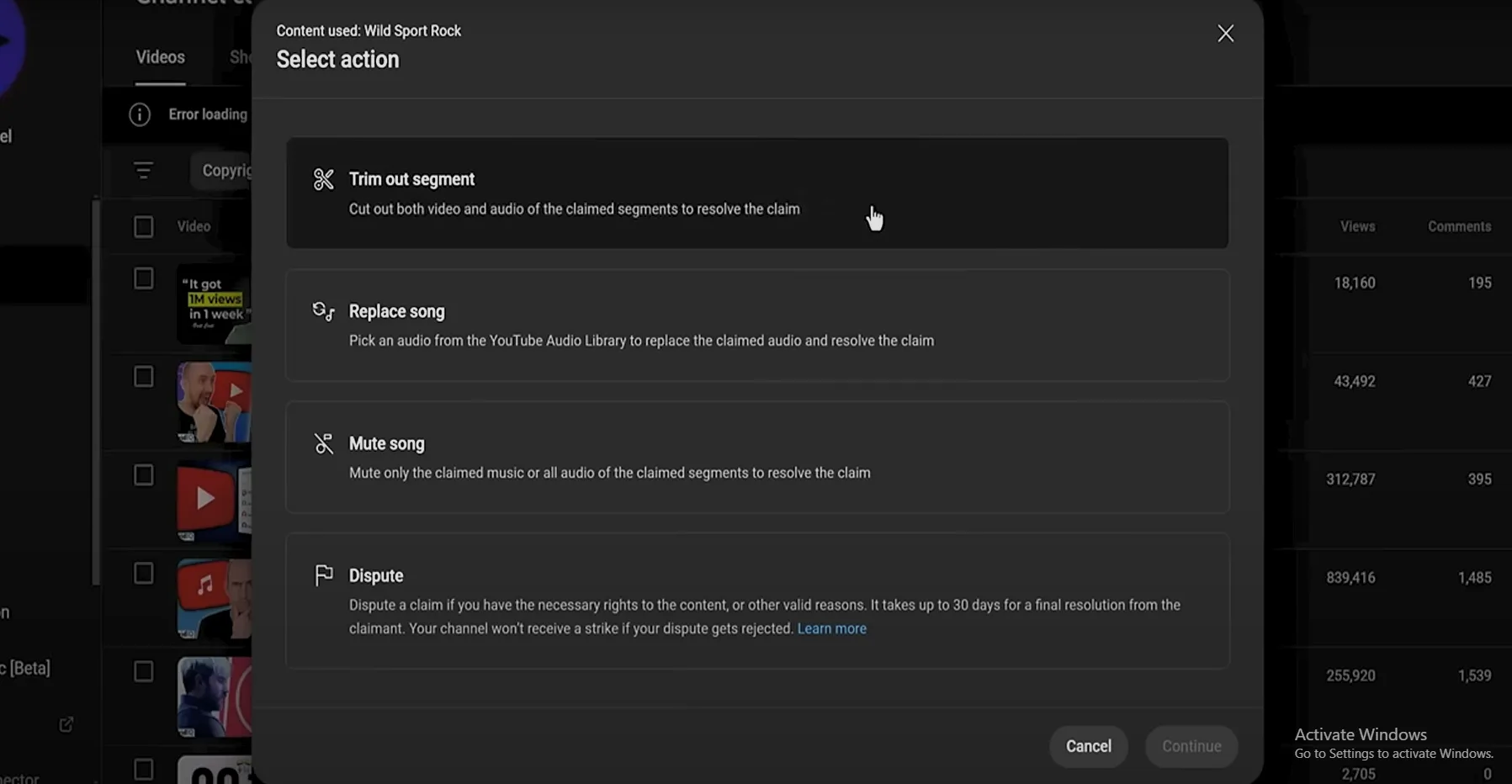
You can remove copyright-claimed music from an existing YouTube video without deleting or reuploading it. Open YouTube Studio → Content, find the affected video, open the copyright details, and choose Erase song, Replace song, or Trim out segment. If the edit removes all claimed material, YouTube says the Content ID claim and its associated restrictions are cleared automatically.
Before saving, download a backup and preview the result carefully. Changes saved in YouTube Studio Editor have been permanent since June 2025; the old “Revert to original” option is no longer available.
First, Check Whether It Is a Claim or a Strike
A Content ID claim and a copyright strike are not the same thing. YouTube’s official guide to copyright claims says a claim can affect monetization or where a video is viewable, but it does not automatically give your channel a strike.
In YouTube Studio:
- Open Content from the left menu.
- Use the filter bar and choose Claims or Copyright.
- Find the video and inspect the Restrictions column.
- Open See details to view the claimant, affected timestamps, and policy.
If the label says Claims, the Content ID tools in this guide may be available. If it says Copyright—Takedown, the video is affected by a copyright removal request. That is a different process and may involve a strike, so do not assume that muting one song will resolve it.
Back Up the Video Before Editing
YouTube warns that Studio Editor changes cannot be undone after you save them. Download your uploaded video first, or use Google Takeout if you need a broader archive. Keep your original project file too, because a downloaded YouTube copy is not a substitute for the original master.
Also save:
- the original audio mix;
- the claim details and timestamps;
- any music license, invoice, or permission email;
- screenshots of the video’s current settings and monetization status.
This backup matters most when dialogue and music overlap. Automated song removal can preserve speech in some cases, but it may also create audible artifacts.
How to Remove Copyrighted Music in YouTube Studio
Follow YouTube’s current remove copyright-claimed content workflow:
- Sign in to YouTube Studio.
- Select Content.
- Find the claimed video.
- Click the notice in the Restrictions column, then choose View details or See details.
- Locate the relevant claim and select Take action.
- Choose Erase song, Replace song, or Trim out segment.
- Preview the edit from beginning to end—especially the transitions before and after the claimed section.
- Save only when you are satisfied and acknowledge that the change is permanent.
The best option depends on whether the music sits under speech, appears in a short isolated clip, or runs through most of the video.
Option 1: Erase Song but Keep Dialogue
Erase song attempts to remove only the claimed music while preserving dialogue and sound effects. It is usually the first option to try when someone is speaking over background music.
- Choose Erase song.
- Select the version that removes only the song.
- Generate and listen to the preview.
- Check voices, ambient sound, cuts, and the exact beginning and end of the claim.
- Save if the result is clean.
The separation is not guaranteed to work. Music that is loud, heavily compressed, mixed into dialogue, or recorded live may be difficult to isolate. YouTube notes that if Erase song does not successfully remove the claimed audio, the claim may remain.
When “Mute All Sound” Is Better
If preserving dialogue is not essential, choose Mute all sound in the claimed segments. This removes every sound during the selected section, not just the song. YouTube says this option is usually faster and more likely to clear the claim automatically.
Use it for a brief intro, transition, background montage, or other section where silence will not confuse viewers. Preview the surrounding cuts so the audio does not stop or restart abruptly.
Option 2: Replace the Claimed Song
Replace song swaps the claimed audio for music from the YouTube Audio Library. This works well for montages, tutorials, travel clips, and other videos where background music is useful but the original track is not essential.
- Choose Replace song from the claim’s Take action menu.
- Browse recommendations or search the Audio Library.
- Preview a track and click Add.
- Drag the new track to set its start time.
- Drag its edges to cover the entire claimed section.
- Adjust the track level where the editor provides volume controls.
- Preview the full affected sequence and save.
The replacement must cover all claimed audio. If part of the original claimed song remains, YouTube may not release the claim.
YouTube’s audio-track documentation says the full audio-replacement workflow requires a computer; changing the audio track is no longer available in the main YouTube mobile app. Tracks supplied through the YouTube Audio Library can be used in monetized videos, but always check whether a particular track requires attribution and copy the required credit accurately.
Option 3: Trim Out the Claimed Segment
Trim out segment removes the claimed portion of the video, including its visuals and audio. It is often the cleanest fix when the claim covers a short, nonessential clip.
- Select Trim out segment.
- Review or adjust the start and end times.
- Make sure the complete claimed section is inside the cut.
- Preview the transition.
- Save the trim.
Do not cut too tightly around the displayed timestamps. If any claimed content remains outside the trimmed range, the claim may stay active. Also check whether the edit removes an important sentence, subtitle, demonstration step, or chapter marker.
Can You Fix the Claim From a Phone?
The YouTube Studio mobile app currently supports claim actions for Erase song, Mute all sound, and Trim out segment on eligible videos. Open the Studio app, select Content, choose the video, open the claim details, and select the available action.
For precise timing and replacing music with an Audio Library track, a computer is the safer choice. A larger timeline makes it easier to hear awkward cuts and confirm that the new song covers the complete claimed interval.
What Happens After You Save?
YouTube processes the edit in the background. The Videos list can display a “Video editing is in progress” badge and an estimated time remaining. You can close the editor, but you cannot make other edits to that video while processing continues. The existing version stays available until processing finishes.
When processing is complete:
- reload the YouTube Studio page;
- confirm that the claim is gone from Restrictions;
- watch the edited section on the public watch page;
- test it on headphones and a phone speaker;
- check captions, chapters, cards, and end-screen timing;
- review monetization and regional availability again.
For videos with manually uploaded multi-language audio tracks, YouTube says Studio Editor applies the edit to those secondary tracks too, while the editor may preview only the primary track. Review every language track after processing.
Why the Claim May Still Be There
A claim can remain for several reasons:
- some claimed music was left outside the edited range;
- Erase song could not isolate the music from voices or other sounds;
- there are multiple claims from different owners, territories, or timestamps;
- the new replacement track does not cover the entire claimed section;
- processing has not finished;
- the video is subject to a takedown rather than a normal Content ID claim.
Inspect every claim separately. Clearing one claimant’s segment does not automatically resolve other claims on the same video.
Editing Limits to Know
YouTube lists several limits that can affect the workflow:
- If your channel is not in the YouTube Partner Program, you may be unable to save Studio edits on a video with more than 100,000 views.
- The general Audio tool is available only for videos shorter than six hours.
- You cannot make additional edits while the current change is processing.
- Saved Studio Editor changes cannot be reverted to the original.
If an important high-view video is ineligible for editing, preserve the original and review the rights, dispute, or re-edit-and-reupload options carefully before acting.
When to Dispute Instead of Removing the Music
Do not erase licensed or original music automatically if the claim appears wrong. A dispute may be appropriate when you own the content, have a valid license, have explicit permission, or have another legally valid basis to use it.
Before disputing, verify the claimant, track, timestamps, territory, and license terms. Collect the exact evidence the claimant will need. A royalty-free label alone is not proof that the license covers YouTube use or monetization.
YouTube warns that disputing without a valid reason can lead the claimant to request removal. If YouTube receives a valid takedown request, the channel can receive a copyright strike. YouTube does not mediate copyright ownership disputes. This article is practical platform guidance, not legal advice.
The same verification habit is useful beyond copyright. Our guide to fact-checking AI answers and citations provides a repeatable method for checking sources and documentation before relying on a claim.
Avoid “Copyright Removal” Tools and Extensions
You do not need to give an external website your Google password to access YouTube’s official claim-removal controls. Avoid extensions or services that promise to remove claims, restore monetization instantly, or “whitelist” your channel after you sign in through an unfamiliar page.
If a tool is genuinely useful for editing before upload, verify its developer, permissions, privacy policy, and billing terms. Use our checklist for checking whether a browser extension is safe before installing anything that can read your browsing data or access creator accounts.
Frequently Asked Questions
Can I replace a YouTube video without losing its URL or views?
No. YouTube does not let creators replace the underlying uploaded video file while keeping the same URL. Studio Editor can modify eligible parts of the existing upload, which preserves the video page, views, comments, and URL.
Does deleting and reuploading remove a copyright claim?
Not if the new upload contains the same claimed material. It may receive the same Content ID match, and deleting the original also loses its URL, comments, and accumulated performance.
Will removing the song restore monetization?
If the music claim is the only restriction and the edit removes all claimed content successfully, YouTube says the claim is cleared automatically. Recheck the Monetization and Restrictions columns after processing; other claims or eligibility issues may still apply.
Can Erase song keep my voice?
It attempts to preserve dialogue and sound effects, but results depend on the mix. Preview carefully. When separation fails, replace the song, mute the complete segment, or trim the clip.
Is a Content ID claim a copyright strike?
No. A normal Content ID claim is different from a copyright takedown and does not itself create a strike. The Restrictions column tells you which type of issue affects the video.
The Safest Workflow
Back up the video, confirm it is a Content ID claim, and start with the least disruptive option. Try Erase song when speech matters, Replace song when background music is needed, and Trim when the claimed clip is expendable. Preview every change, remember that saving is permanent, and verify the watch page after processing. Dispute only when you have a genuine rights-based reason and supporting evidence.