How to Use YouTube Live Practice Mode Before Going Live
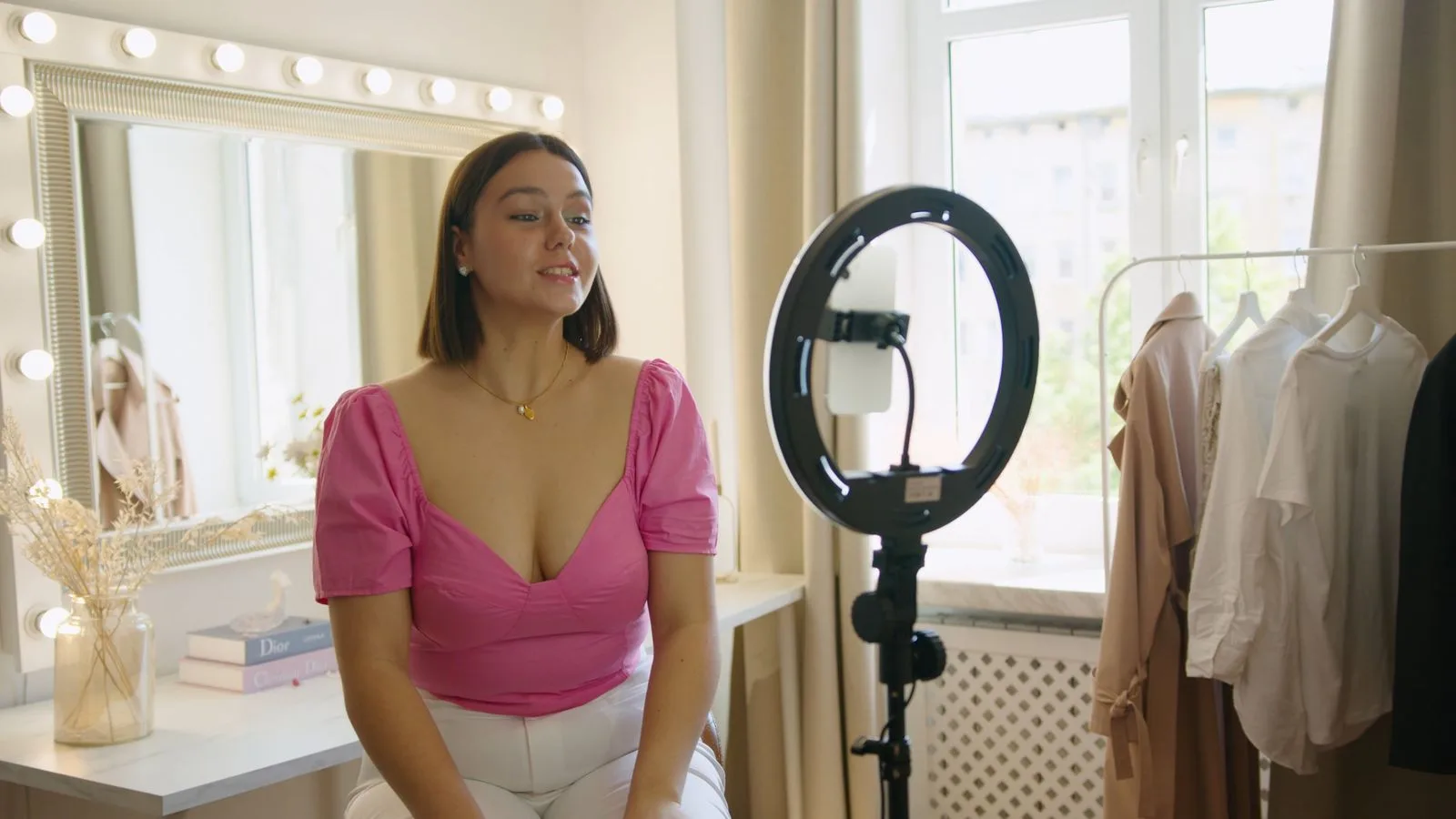
YouTube Live Practice Mode lets you rehearse a mobile livestream privately, with no real audience, then start the actual broadcast from the same screen when you are ready. In the YouTube app, tap Create, choose Go live, and select Practice mode below the Next button.
The feature is especially useful for checking framing, lighting, microphone placement, phone orientation, and your opening lines without creating the pressure of a public audience. YouTube lists Live Practice Mode among its latest creator updates and says it is rolling out to all creators on the mobile app.
How to use YouTube Live Practice Mode
- Open the latest version of the YouTube app on your phone or tablet.
- Tap the Create button at the bottom of the screen.
- Tap Go live.
- Set up the stream details you plan to use, including the title, audience setting, orientation, and any available live-chat options.
- Below the Next button, select Practice mode.
- Rehearse your stream in the private practice space. There is no real audience watching.
- When everything looks and sounds right, tap Go Live in the top-right corner to begin broadcasting to your selected audience.
- If you do not want to start the real stream, tap the X to leave the practice session.
These are the steps in YouTube's current mobile live-streaming guide. Because the feature is still rolling out, the button may not yet be visible on every eligible account.
Who can use Live Practice Mode?
Practice Mode follows YouTube's mobile live-streaming requirements. Your channel currently needs:
- At least 50 subscribers.
- No live-streaming restrictions during the previous 90 days.
- A verified YouTube channel.
- Live streaming enabled on the channel.
- An Android device running Android 8.0 or later, or an iPhone or iPad running iOS 8 or later.
YouTube also says creators must be at least 16 years old to livestream. Enabling live streaming for the first time can take up to 24 hours. These requirements are separate from the rollout of Practice Mode itself, so a creator can receive the interface update but still be unable to use it until the channel becomes eligible.
Channels with 50 to 999 subscribers may have a limited mobile livestream audience, and their archived stream may be private by default. YouTube says the limitation can take several weeks to lift after a channel reaches 1,000 subscribers.
What to test during a practice session
A useful rehearsal should reproduce the conditions of the real broadcast. Do not spend the session merely confirming that the camera turns on.
1. Check framing and orientation
Decide whether the stream should be vertical or horizontal before you begin. Vertical live video can be discovered through the Shorts feed, while horizontal video is usually better for interviews, desk demonstrations, and scenes with multiple people.
Place the phone at eye level, leave safe space around your face, and check that important objects are not cut off. If you will demonstrate a product, hold it in the same position and at the same distance you expect to use during the broadcast.
2. Test speech at real volume
Speak as loudly and as softly as you expect to speak live. Listen for room echo, fan noise, traffic, clothing rubbing against a microphone, or audio that becomes harsh when you get excited.
If you use a wired or wireless microphone, briefly disconnect and reconnect it before practice. This catches a common failure in which the phone silently returns to its built-in microphone.
3. Rehearse the first minute
Prepare a short opening that tells viewers what they will learn, why it matters, and what you will do first. Rehearse it once for clarity and once while operating the phone controls. The second attempt is often more realistic because livestreaming divides your attention.
4. Check light and background privacy
Look for bright windows behind you, reflections, flicker from inexpensive LED lights, and distracting movement. Also check the entire background for addresses, documents, family photos, screens, or location clues that should not appear publicly.
5. Test the connection
Practice from the exact location and network you will use. Walk through any movement planned for the stream and watch for frozen video or delayed audio. If the connection is unreliable, reduce movement, move closer to the router, or switch to a more stable network before going live.
A 10-minute YouTube live rehearsal checklist
- Minute 1: Confirm the correct channel and stream title.
- Minutes 2–3: Check orientation, framing, focus, and background.
- Minutes 4–5: Speak at normal and peak volume; test the microphone.
- Minutes 6–7: Deliver the opening and first transition.
- Minute 8: Demonstrate any product, screen, notes, or prop.
- Minute 9: Test movement and connection stability.
- Minute 10: Turn on Do Not Disturb, check battery and power, then decide whether to go live or exit.
It is also worth checking the rights to music or clips before the broadcast. If a completed upload later receives a music claim, our guide explains how to remove copyrighted music from a YouTube video without reuploading.
Practice Mode versus a private or unlisted test stream
Live Practice Mode is designed specifically as a rehearsal space inside the mobile livestream workflow. YouTube describes it as private, with no real audience, and lets you move directly into the live broadcast.
A private or unlisted test stream is still a stream with a visibility setting. That older workaround can be useful when you need another person to open a watch page and judge playback on a different device. Practice Mode is better when you need a fast solo check immediately before going live.
For a scheduled launch, promote the watch page separately rather than relying on Practice Mode to notify people. You can use the planning workflow in our guide to scheduling social media posts with Buffer to prepare reminders ahead of time.
Why YouTube Practice Mode is missing
The feature has not reached your account
YouTube says Live Practice Mode is rolling out to all creators. Rollouts are usually gradual, so two eligible channels on the same phone may not receive the option at the same time. Update the YouTube app and check again later; reinstalling the app cannot force a server-side rollout.
Your channel is not eligible for mobile live streaming
Confirm that the channel has at least 50 subscribers, is verified, has live streaming enabled, and has no live restrictions in the past 90 days. If you enabled live streaming for the first time today, allow up to 24 hours.
You selected the wrong channel
Creators who manage several brand or personal channels can easily open the livestream screen under the wrong identity. Check the profile picture and channel name before troubleshooting the app.
You are trying from a computer
Practice Mode is currently a mobile-only feature. YouTube's desktop Live Control Room already provides a preview for webcam and encoder workflows, but it is not the same interface.
Can viewers see a YouTube Practice Mode session?
No. YouTube says Practice Mode places you in a private space with no real audience. Viewers are not present until you deliberately tap Go Live and begin the actual stream.
That final button deserves a pause. Before tapping it, recheck the selected audience, privacy setting, title, and camera view. For creators aged 16 or 17, YouTube sets mobile livestream privacy to unlisted by default; adults have public as the default, although creators can change it.
Does Practice Mode replace a full technical test?
Not always. It is excellent for a mobile creator using one phone, but a production with remote guests, multiple cameras, graphics, or an encoder still needs a full workflow test. YouTube's live-streaming tips recommend checking previews and continuously monitoring audio and video quality for more advanced streams.
For a simple mobile broadcast, however, Practice Mode removes much of the friction from rehearsing. Use it to catch the small errors that make a live stream feel unprepared, then go live only when the picture, sound, connection, and opening are ready.
Frequently asked questions
Is YouTube Live Practice Mode available on desktop?
No. YouTube currently documents it only for mobile live streaming in the YouTube app.
Do I need 1,000 subscribers?
No. The current minimum for mobile live streaming is 50 subscribers, although channels below 1,000 subscribers may have audience limitations.
Can I go live directly from Practice Mode?
Yes. Tap Go Live in the top-right corner when you are ready. You can also tap the X to exit without broadcasting.
Is Practice Mode available to every creator now?
YouTube says it is rolling out to all creators. If your channel meets the mobile livestream requirements but the option is absent, update the app and wait for the rollout to reach the account.
Availability and requirements were checked against YouTube's official Creator Updates and live-streaming eligibility guide on September 8, 2026.