How to Tell If a USB-C Cable Supports Video Output
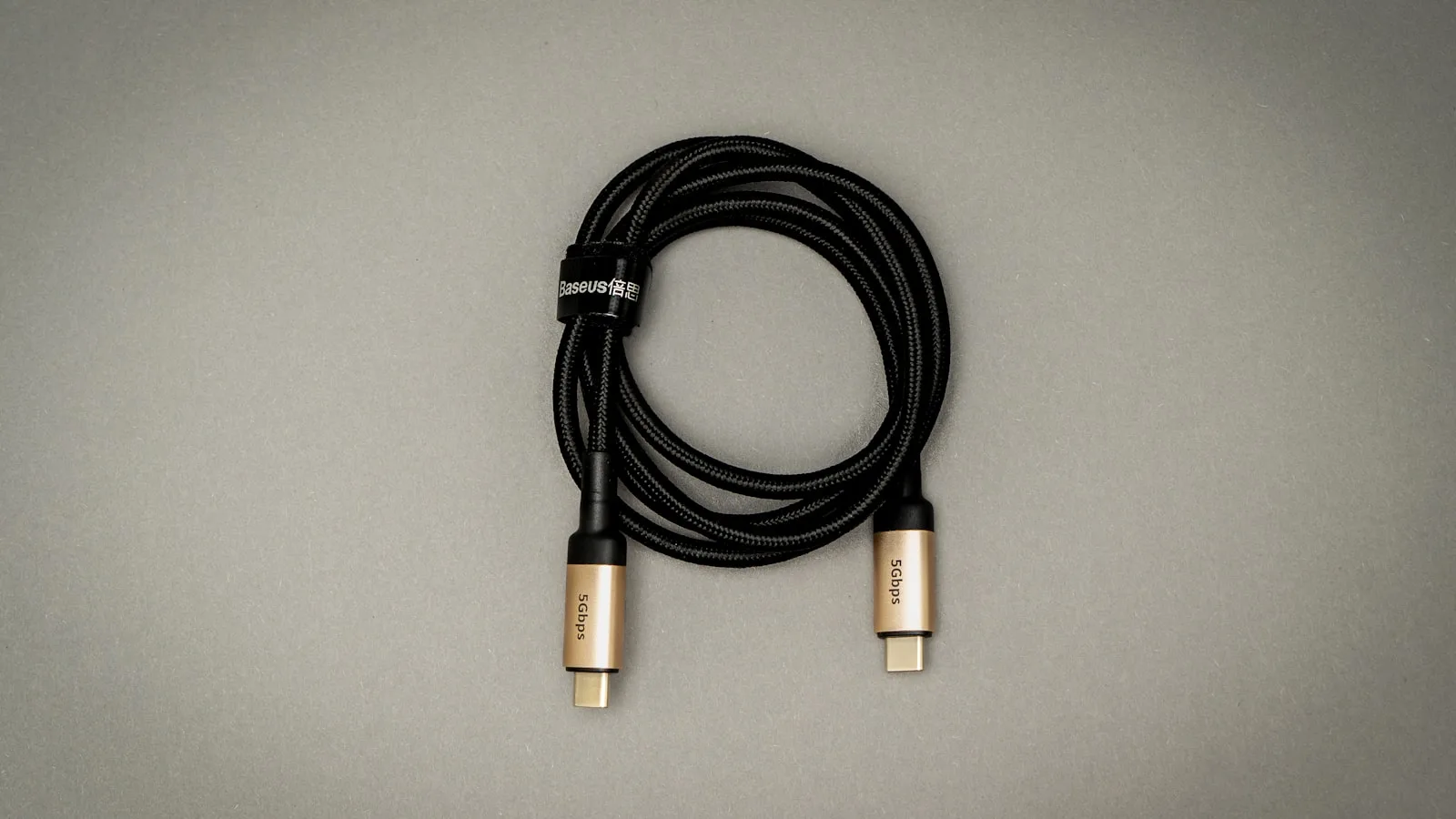
To tell whether a USB-C cable supports video output, check its published specifications for DisplayPort Alt Mode, USB4, or Thunderbolt support—then confirm that the source device’s USB-C port also supports video. The connector shape alone is not enough. Two cables can look identical while one carries a monitor signal and the other handles only charging and slow data.
This guide shows you the quickest checks to make before buying a cable or troubleshooting a blank external monitor.
The short answer: not every USB-C cable carries video
USB-C describes the reversible connector, not a single set of capabilities. A USB-C connection can carry charging, USB data, audio, video, or several of those at once. The exact result depends on three separate parts:
- The source port: Your laptop, tablet, or phone must support video over that USB-C port.
- The cable: It must have the high-speed wiring and specifications required for the video connection.
- The display or adapter: The monitor, dock, or USB-C-to-HDMI adapter must accept the same type of signal.
A video-capable cable cannot add display output to a charge-only port. Likewise, a video-capable laptop port will not work through a basic charging cable.
How to tell if a USB-C cable supports video output
1. Read the cable specification, not just the product name
Look at the packaging, manufacturer page, receipt, or technical sheet. Useful wording includes:
- “Supports video output” or “monitor support”
- “DisplayPort Alt Mode compatible”
- “USB4”
- “Thunderbolt 3,” “Thunderbolt 4,” or “Thunderbolt 5”
- A stated display limit such as 4K at 60Hz or 8K at 60Hz
VESA explains that DisplayPort over USB-C uses USB-C’s Alternate Mode to carry a DisplayPort signal. That is the technology behind many one-cable laptop-to-monitor setups.
Be cautious with vague listings that say only “USB-C cable,” “fast charging,” or “high speed.” Those phrases do not confirm monitor support.
2. Check the logos on both cable ends and the device port
A Thunderbolt lightning-bolt symbol is a strong sign that the connection is designed for high-speed data and displays. Certified USB performance markings such as USB 20Gbps, USB 40Gbps, or USB 80Gbps can also help identify a full-featured cable.
You can verify certified products through the USB-IF product database. A certified logo is more useful than a generic “compatible” claim because listed products have passed the USB-IF compliance program.
Also inspect the USB-C port on the laptop or phone. A DisplayPort symbol beside the port usually indicates video output. A Thunderbolt symbol indicates Thunderbolt capability. However, many manufacturers use no symbol at all, so the device manual remains the most reliable check.
3. Do not confuse wattage with video support
A label such as 60W, 100W, or 240W describes the cable’s charging capability. It does not, by itself, prove that the cable can carry video. Some high-wattage cables are intended mainly for charging and may offer only USB 2.0 data speeds.
Treat power and video as separate specifications. If you also want the monitor or dock to charge your laptop, check our guide to USB-C charger wattage so the cable, charger, and device are properly matched.
4. Check the claimed resolution and refresh rate
“Supports video” is only the first requirement. The cable should also support the resolution and refresh rate you plan to use. A cable that works at 1080p may not reliably handle 4K at 60Hz, 4K at 120Hz, or a high-resolution ultrawide monitor.
Match the cable specification to the display. For example, look for an explicit claim such as:
- 4K at 60Hz for common productivity monitors
- 4K at 120Hz or 144Hz for high-refresh displays
- 5K, 6K, or 8K support for specialist monitors
Thunderbolt 4, for example, can support external displays through compatible docks or adapters; Intel’s official Thunderbolt 4 overview describes support for up to two 4K 60Hz monitors. Actual limits still depend on the computer, dock, operating system, and display.
5. Test it with a known-good port and monitor
If the markings are unclear, a controlled test is the fastest practical answer:
- Confirm in the laptop or phone manual that the chosen USB-C port supports video.
- Connect the cable directly to a USB-C monitor when possible, avoiding a dock for the first test.
- Select the correct USB-C input on the monitor.
- Wait several seconds for the devices to negotiate the connection.
- Check the operating system’s display settings.
On Windows 11, open Settings > System > Display, expand Multiple displays, and select Detect. On macOS, open System Settings > Displays.
If there is no picture, swap only one component at a time. First try a known-good video cable, then another video-capable port, and finally a different monitor input. This method isolates the failed component instead of guessing.
What cable types usually support USB-C video?
| Cable type | Video support | What to verify |
|---|---|---|
| Basic USB-C charging cable | Often no | Do not assume video from wattage alone |
| Full-featured USB-C cable | Usually, with a compatible port | DisplayPort Alt Mode and resolution claim |
| USB4 cable | Designed for high-speed data/display use | Certified speed and device support |
| Thunderbolt 3/4/5 cable | Yes, with compatible hardware | Thunderbolt logo, generation, and cable length |
| USB-C-to-HDMI/DisplayPort cable | Yes, when the source port supports video | Resolution, refresh rate, and direction |
VESA confirms that a USB-C source using DisplayPort Alt Mode can connect to DisplayPort and, with the appropriate protocol adapter, to HDMI. Some conversion cables are directional, so a cable intended for USB-C source to HDMI display may not work in reverse.
Why a USB-C monitor connection may still fail
Even with the right cable, these issues can produce a blank screen:
- The port is data-and-charge only. This is common on phones and on secondary USB-C ports in some laptops.
- The wrong monitor input is selected. Choose USB-C rather than HDMI or DisplayPort in the display menu.
- A dock is limiting the connection. Test the cable directly between the computer and monitor.
- The cable cannot handle the requested display mode. Lower the resolution or refresh rate temporarily.
- The cable is too long for its rated performance. High-bandwidth passive cables often have tighter practical length limits.
- Power is insufficient. Portable monitors may need a separate power source, especially at higher brightness.
- The adapter is directional. Check which end is the source and which is the display.
A simple buying checklist
Before purchasing a USB-C monitor cable, confirm all of the following:
- Your computer or phone port explicitly supports DisplayPort Alt Mode, USB4 display output, or Thunderbolt.
- The cable description explicitly mentions video—not only charging.
- The claimed resolution and refresh rate meet your monitor’s requirements.
- The power rating is sufficient if the monitor or dock will charge the laptop.
- The cable length is within the manufacturer’s rated performance.
- The product carries a recognized USB-IF or Thunderbolt certification when possible.
Apple’s specifications provide a useful example of clear documentation: its Thunderbolt 3 USB-C cable guide separately states the supported video standard, data speed, and charging capability. Look for that same level of detail from any cable manufacturer.
Frequently asked questions
Can every USB-C cable connect a laptop to a monitor?
No. The cable must support video, and the laptop’s USB-C port must provide a video signal. Many inexpensive charging cables lack the necessary high-speed wiring.
Does a 100W or 240W USB-C cable support video?
Not necessarily. Wattage describes power delivery, not display capability. Confirm DisplayPort Alt Mode, USB4, Thunderbolt, or an explicit video specification separately.
Does USB 3.2 automatically mean video support?
No. USB data speed and DisplayPort Alt Mode are separate capabilities. Check both the cable specification and the source device manual.
Will a Thunderbolt cable work with a USB-C monitor?
Usually, provided the devices support compatible USB-C display modes. Check the monitor, computer, and cable specifications because maximum resolution and charging behavior can vary.
Can software tell me what a USB-C cable supports?
Operating-system tools can show that a display connected successfully, but they usually cannot provide a complete, reliable capability list for an unmarked cable. The manufacturer specification, certification database, and a known-good hardware test are more dependable.
Bottom line
The most reliable way to identify a video-capable USB-C cable is to find an explicit DisplayPort Alt Mode, USB4, Thunderbolt, or display-resolution specification and then verify that the source port supports video. Never rely on the USB-C shape or charging wattage alone. When documentation is missing, test with a known-good port and monitor while changing one component at a time.
Featured image: Mika Baumeister on Unsplash.