How to Reset Your TikTok For You Feed Without Deleting Your Account
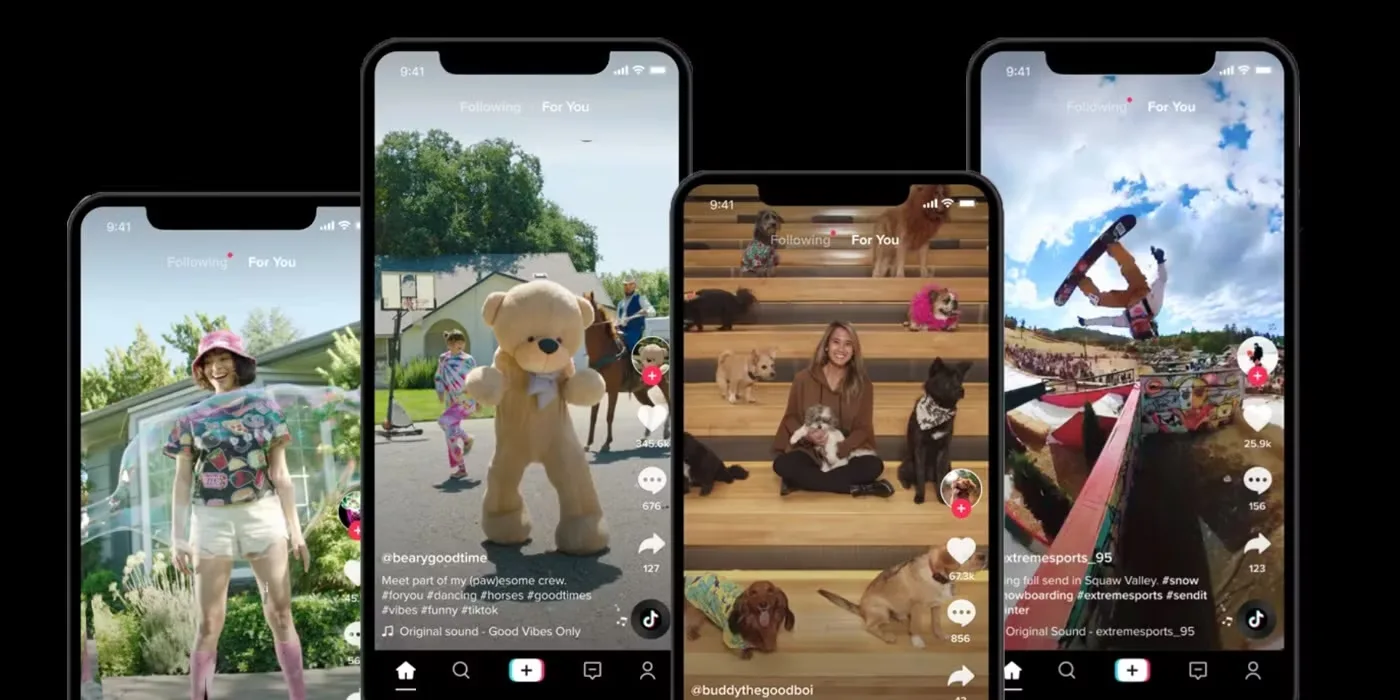
You can reset TikTok’s For You feed without deleting your account. In the mobile app, go to Profile → Menu (☰) → Settings and privacy → Content preferences → Refresh your For You feed, then confirm the refresh. TikTok says the change cannot be undone, but it affects recommendations in the For You feed—not your profile, followers, posts, likes, inbox, or Following feed.
The refresh gives TikTok a new starting point for recommendations. What you watch, search for, like, share, and mark “Not interested” afterward will shape the rebuilt feed, so the first few sessions matter.
Before You Reset: What the Refresh Changes
TikTok’s official Refresh your For You feed control is designed for a feed that has become repetitive, irrelevant, or filled with topics you no longer want.
Refreshing the feed:
- resets the recommendations shown in your For You feed;
- does not delete your TikTok account;
- does not remove your videos, drafts, followers, following list, likes, messages, or profile settings;
- does not reset your Following feed or profile;
- cannot be reversed after you confirm it.
This is different from creating a new account. You keep your existing identity and social graph while asking TikTok to rebuild one recommendation surface.
How to Reset Your TikTok For You Feed
- Open TikTok on your iPhone or Android phone.
- Tap Profile in the bottom-right corner.
- Tap the Menu button (☰) at the top.
- Select Settings and privacy.
- Tap Content preferences.
- Select Refresh your For You feed.
- Review the warning and follow the on-screen confirmation steps.
TikTok may show sample content immediately after the reset so you can begin establishing new interests. Menu labels can vary slightly by app version, but the refresh option belongs under Content preferences.
Should You Refresh or Just Use “Not Interested”?
Use Not interested when only a few creators, sounds, or topics are bothering you. Press and hold a video—or use the Share menu, depending on your app version—and choose Not interested.
Use the full refresh when the entire For You feed feels wrong. Examples include a feed dominated by an old hobby, content in an unwanted language, repetitive trends, or recommendations shaped by someone else using your phone.
How to Retrain TikTok After the Reset
A reset is only the beginning. TikTok explains that recommendations are influenced by user interactions, content information, and user information. Its guide to how content is recommended says interactions such as watching, skipping, liking, sharing, and commenting can affect what appears next.
1. Search for the Topics You Actually Want
Search for three to five specific interests rather than broad terms. For example, “beginner espresso setup,” “small apartment workouts,” or “Android camera tips” gives the system clearer signals than generic searches such as “coffee,” “fitness,” or “phones.”
Open several relevant results and watch the genuinely useful ones. Follow a small number of strong creators instead of following every account at once.
2. Watch Wanted Videos and Skip Unwanted Ones
Watch useful videos long enough to evaluate them. Save, like, or share only content you would really want to see again. When an unwanted video appears, swipe away promptly or mark it Not interested.
Avoid “hate-watching” irrelevant videos to the end or repeatedly opening their comments. Even negative curiosity can create interaction signals around a topic.
3. Adjust Manage Topics
Open Profile → Menu → Settings and privacy → Content preferences → Manage topics. TikTok’s Manage topics documentation says you can adjust how much you want to see from available topic categories in the For You feed.
Topic adjustments can take time to affect recommendations. They are guidance, not an instant block, and they do not replace keyword filters when you need to avoid a specific phrase or hashtag.
4. Add Keyword Filters for Specific Subjects
Under Content preferences, open Filter video keywords or Filter keywords. Add words or hashtags tied to subjects you do not want in supported feeds. TikTok’s current safety guidance says an account can add up to 100 keywords and may offer a smart-filter option for similar words and variations; availability can differ by region and feed.
You can also press and hold an unwanted post, choose Not interested, and use Details when available to filter hashtags associated with that video.
5. Mute a Creator When the Topic Is Fine but the Account Is Not
If you still want a topic but do not want recommendations from one particular account, muting may be more precise than filtering the subject. TikTok’s muting guide explains the available controls.
Clearing Cache Does Not Reset the TikTok Algorithm
Clearing TikTok’s cache removes temporary files stored by the app. It may help with storage or a glitch, but it does not perform the same job as Refresh your For You feed.
Likewise, uninstalling and reinstalling TikTok is not a dependable recommendation reset. Your personalized feed is connected to your account activity, not only to files stored on the phone.
If you are troubleshooting a wider Android app problem, our guide to stopping apps from draining battery in the background covers background restrictions and the side effects they can cause.
What to Do If “Refresh Your For You Feed” Is Missing
Try these checks in order:
- Update TikTok from the Apple App Store or Google Play Store.
- Restart the app and check Content preferences again.
- Use the mobile app. The web interface does not always expose the same account controls.
- Check account or regional availability. Some controls can roll out differently across regions and account types.
- Review Family Pairing. A linked teen account may have settings managed by a parent or guardian. TikTok documents these controls in its Family Pairing guide.
- Report the problem through Settings and privacy → Report a problem if the option should be available but remains missing.
Privacy and Safety Checks Worth Doing at the Same Time
A recommendation reset does not change who can discover your account, send messages, comment, or view your posts. Review those privacy settings separately.
If contact-based recommendations are a concern across social apps, see our guide to stopping Instagram from suggesting your account to contacts. The controls are different on each platform, but the same principle applies: turn off contact syncing and remove previously uploaded contacts where the service permits it.
Do not install “algorithm reset” extensions or third-party TikTok tools that request your login. TikTok already provides the official refresh control. Before trusting any add-on, use our checklist for checking whether a browser extension is safe.
Frequently Asked Questions
Will resetting the For You feed delete my drafts?
No. The official refresh is for For You recommendations. It does not delete your profile content or drafts. Still, drafts are stored locally on the device, so back up any important draft before reinstalling TikTok, changing phones, or clearing app data.
Will I lose followers or accounts I follow?
No. Your follower and following relationships remain intact.
Can I undo the refresh?
No. TikTok explicitly states that once the For You feed is refreshed, the action cannot be undone. You can, however, rebuild the feed through new interactions.
Does the refresh remove ads?
No. Refreshing recommendations does not provide an ad-free TikTok experience and should not be treated as an advertising-preference reset.
Do creators need to reset their feed to fix low views?
No. This setting changes what the account watches in its For You feed; it is not a creator-reach reset and does not clear account standing or moderation history.
How long does it take for the feed to improve?
TikTok does not promise a fixed time. The feed begins rebuilding after the refresh, and consistent interactions make your preferences clearer. Manage Topics changes may also take time to influence recommendations.
The Best Reset Strategy
Start with Not interested, Manage Topics, and keyword filters if the problem is narrow. Use Refresh your For You feed when recommendations are broadly off-target and you are comfortable with an irreversible reset. After refreshing, spend your first sessions searching for specific interests, watching useful videos, and quickly skipping unwanted ones. That combination is more effective than clearing cache or deleting the app—and it lets you keep your account.