How to Share Audio to Multiple Earbuds on Samsung Galaxy With Auracast
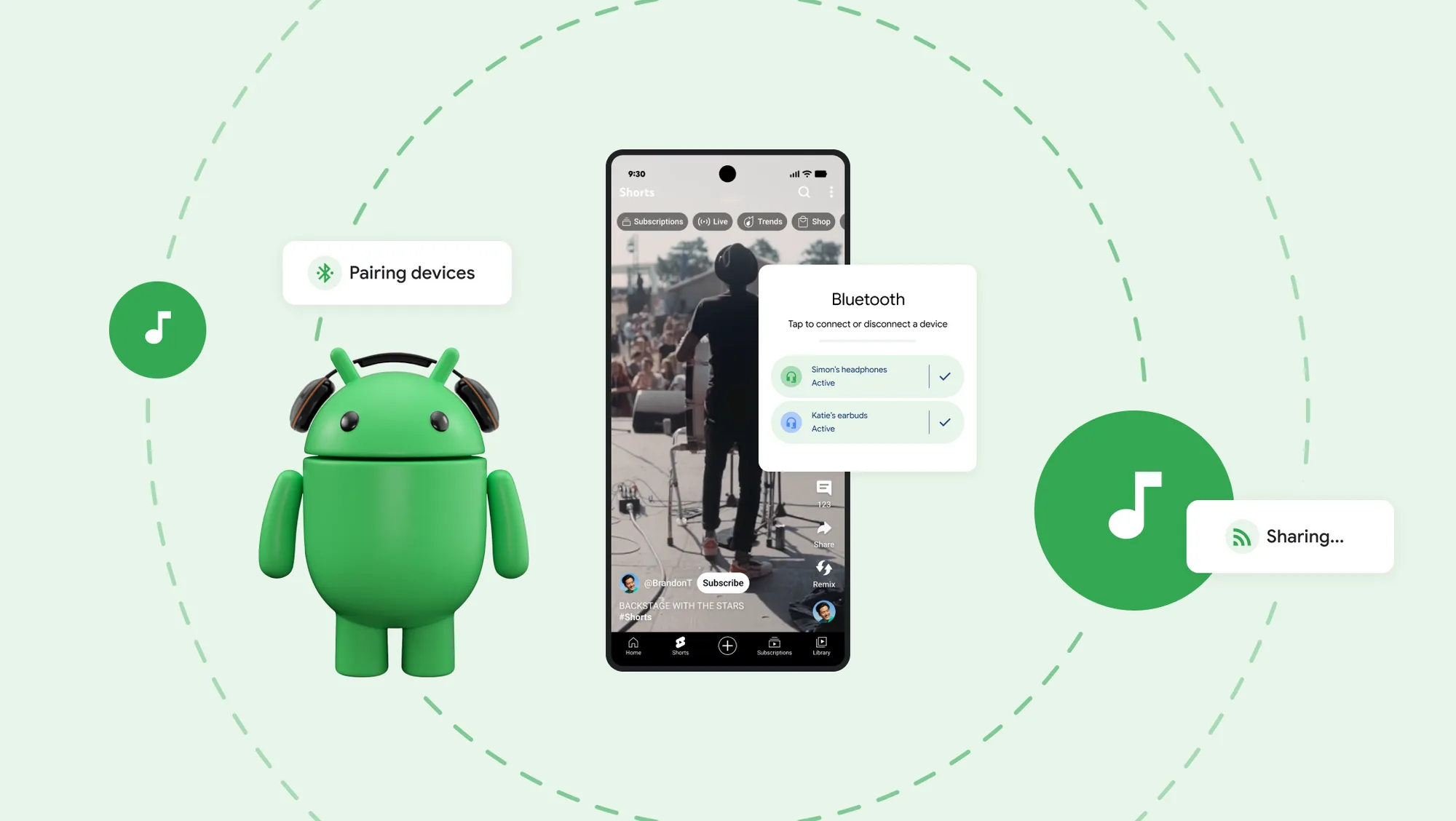
You can share audio from a compatible Samsung Galaxy phone to multiple pairs of earbuds by starting an Auracast broadcast. On a Galaxy S26 or another device running One UI 8.5 or later, open Quick Settings > Audio broadcast, choose Media, and tap the broadcast button. On older supported One UI versions, go to Settings > Connections > Bluetooth > More options > Broadcast sound using Auracast.
The important catch is compatibility: the phone and every listening headset must support Bluetooth LE Audio. Ordinary Bluetooth support—or even Bluetooth 5.2 printed on a box—does not by itself guarantee Auracast support.
What you need before sharing audio
- A Galaxy phone or tablet that can act as an Auracast source.
- Current system software and current earbud firmware.
- For each listener, Auracast-compatible earbuds, headphones, speakers or hearing aids.
- Bluetooth enabled on the broadcaster and receiving devices.
- A broadcast password if you want the session to remain private.
Samsung's exact compatibility list varies by model, software version and region. Its current support documentation identifies recent flagship Galaxy phones and tablets as sources, while Google says Auracast is available on select recent Samsung, Pixel, Xiaomi and POCO devices. Check for an Audio broadcast or Broadcast sound using Auracast menu instead of assuming a device is compatible from its Bluetooth version.
How to share audio on a Galaxy S26 with One UI 8.5
Samsung moved Auracast into a clearer Audio broadcast interface in One UI 8.5. The quickest method is:
- Connect your own LE Audio earbuds to the Galaxy phone.
- Swipe down twice to open the full Quick Settings panel.
- Tap Audio broadcast. If the tile is missing, edit the Quick Settings buttons and add it.
- Select Media to share music, a podcast, video audio or another sound playing on the phone.
- Set a recognizable broadcast name and a password when the option appears.
- Tap the circular Broadcast button.
- Play the audio you want to share.
Samsung also allows a Voice broadcast. This sends sound from the phone's built-in microphone or a supported USB microphone, which can be useful for a tour, a small presentation or accessibility. Samsung says Bluetooth microphones are not supported for this mode.
Start it from Settings instead
If you do not see the Quick Settings tile, use Settings > Connections > Bluetooth > Share > Broadcast. Menu labels can differ slightly by region and firmware, so also search Settings for “Audio broadcast” or “Auracast.”
How listeners join the Auracast broadcast
Each listener should first connect their compatible LE Audio headphones or earbuds to their own phone. On a recent Galaxy device:
- Open Quick Settings > Audio broadcast.
- Choose the Listen tab.
- Select the broadcaster's name from the nearby streams.
- Enter the password and tap Connect.
On some Samsung versions, open Settings > Connections > Bluetooth, tap the gear beside the connected Galaxy Buds, then choose Find a broadcast or Listen to Auracast broadcast.
Compatible Android devices may also join by scanning the broadcaster's QR code. Google describes QR-code joining and Fast Pair as supported routes for LE Audio sharing, but the exact choices depend on the phone, earbuds and installed software.
Steps for One UI 6.1 through One UI 8.0
Auracast is not limited to the Galaxy S26 interface. On supported Galaxy devices running One UI 6.1 through One UI 8.0:
- Open Settings > Connections > Bluetooth.
- Tap the three-dot More options menu.
- Select Broadcast sound using Auracast.
- Edit the broadcast name and password if needed.
- Tap Start broadcast, approve the permission prompt and begin playback.
To stop sharing, return to the broadcast page and tap Stop broadcast. This disconnects all listeners.
Auracast vs Samsung Dual Audio
| Feature | Auracast | Samsung Dual Audio |
|---|---|---|
| Connection type | Bluetooth LE Audio broadcast | Traditional paired Bluetooth audio |
| Number of listeners | Designed for multiple receivers; Samsung says there is no listener limit within range | Normally two connected audio devices |
| Earbud requirement | Must support LE Audio and Auracast | Works with a wider range of ordinary Bluetooth headphones |
| How people join | Discover a broadcast, enter a password, scan a QR code or use a supported assisted-pairing method | Pair each headset directly with the broadcaster's phone |
| Best use | Groups, accessibility, tours and shared listening | Two people using older or mixed headphones |
If only two people need to listen and one headset lacks LE Audio, Dual Audio may be the easier fallback. Auracast is the better option when every receiver is compatible or more than two listeners need the same synchronized stream.
How to check whether your earbuds support Auracast
Look for explicit wording such as Auracast, Bluetooth LE Audio or Listen to broadcast in the manufacturer's specifications or companion app. Do not rely only on the Bluetooth version.
Some earbuds gained LE Audio or Auracast through firmware updates, so update both the phone and the earbuds before deciding that the feature is absent. Samsung currently lists Galaxy Buds2 Pro or later models in its Auracast guidance, although individual features can still depend on the phone and regional firmware.
If you are buying new audio gear, confirm support on the exact regional model rather than a similarly named product. Also remember that charging speed and cable quality are separate from Bluetooth compatibility; our USB-C charger wattage guide can help you choose a sensible charger without paying for power your earbuds cannot use.
Why the Audio broadcast option may be missing
1. The phone does not support Auracast source mode
Some devices can help headphones receive a broadcast but cannot create one. Support also differs between phone variants and software releases. Check the manufacturer's documentation for “Auracast source,” not only “LE Audio.”
2. Your earbuds are using classic Bluetooth audio
Audio sharing may stay hidden until at least one compatible LE Audio headset is connected. Open the earbud settings and look for an LE Audio option, then disconnect and reconnect after enabling it.
3. Software or earbud firmware is outdated
Install Galaxy system updates, Google Play system updates and the newest firmware offered by the earbud companion app. Restart both devices after updating.
4. The menus changed after an update
One UI 8.5 uses the Audio broadcast name and a Share/Listen layout. Earlier supported releases place Auracast under the Bluetooth three-dot menu. Use Settings search if a guide shows a different path.
5. A regional or carrier build has different support
Samsung notes that support instructions and device lists can vary by market. If the hardware should be compatible but no broadcast option appears after updating, check the support page for your country or contact the device manufacturer.
Fix an Auracast broadcast that listeners cannot find
- Move the devices close together for the initial connection.
- Confirm every listener has connected LE Audio earbuds before scanning.
- Turn Bluetooth off and on for the listener, then search again.
- Use a simple broadcast name and re-enter the password carefully.
- Stop and restart the broadcast after changing settings.
- Disconnect other active audio routes, such as a car or speaker, during testing.
- Update the phone and earbuds, then reboot both.
If the stream connects but sounds unstable, reduce distance and obstacles, temporarily disable nearby unused Bluetooth devices, and test with locally stored audio. Samsung warns that stream quality can vary with the app, network connection and other conditions.
Privacy and accessibility settings worth checking
Use a password for personal broadcasts. The broadcast name can be visible to nearby devices, so avoid putting your real name, phone number or another private detail in it. Stop the broadcast when the listening session ends.
On the Galaxy S26 interface, Samsung provides an Allow hearing aids to connect switch for media broadcasts. Enable it when sharing with compatible hearing devices. For medical hearing aids, follow the hearing-aid manufacturer's pairing instructions because controls and compatibility can differ.
Long listening sessions can increase battery use on both the phone and earbuds. If the broadcaster's phone is draining unusually fast outside this feature, use our guide to stop Android apps draining battery in the background.
Can an iPhone join a Galaxy Auracast broadcast?
Do not assume it can. Auracast requires operating-system and hardware support in addition to compatible earbuds, and support is not universal across phones. Apple's Share Audio feature is a separate system for supported AirPods and Beats products. Check the current specifications for the exact iPhone and headphones before planning a mixed-device session.
Google's implementation covers select recent Android phones and compatible LE Audio headphones. If you are comparing platforms or considering a newer Android device, our Pixel 11 upgrade review provides additional context on current Pixel hardware.
Bottom line
For a Galaxy S26 running One UI 8.5, open Audio broadcast, select Media, add a password and start broadcasting. Listeners connect their own LE Audio earbuds, open the Listen tab and select your stream. Older supported Galaxy versions use Bluetooth > More options > Broadcast sound using Auracast.
The setup is simple once compatibility is confirmed. The most common mistake is treating “Bluetooth” as enough: both sides need explicit LE Audio and Auracast support.